
InsForge now supports config as code. A single insforge.toml at your repo root holds your project's auth, password policy, SMTP, and deployment settings, and the CLI gives you a plan / apply / export loop to keep the file and your live backend in sync.
npx @insforge/cli config plan     # diff insforge.toml against the live project
npx @insforge/cli config apply    # push the diff (with confirmation)
npx @insforge/cli config export   # pull live config into a fresh insforge.toml
Why Config as Code
A dashboard is great for a human clicking through settings once. It is a bad fit for two things that now dominate how backends get built: pull request review, and AI coding agents.
When you flip a setting in a dashboard, nothing is reviewable. There is no diff, no history, nothing in the repo that says "this is what the project is supposed to look like." Clone the repo into a new environment and you have to reconstruct the config from memory.
Coding agents make this sharper. An agent works in files. It reads them, edits them, diffs them, and commits them. An agent cannot "see" a toggle you flipped in a web UI. Put the config in a file and the agent gets fine-grained control over the backend: it reads insforge.toml to know the intended state, edits a field, runs config plan to preview the change, applies it, and commits the diff alongside the code that depends on it.
That is the whole idea. The database stays the source of truth for live state. insforge.toml is the intent layer on top of it, and the CLI surfaces drift between the two instead of hiding it.
A Real Walkthrough
Here is the full loop against a fresh project. Start by pulling the current config into a file:
$ npx @insforge/cli config export
✓ Wrote insforge.toml
That writes the live state to disk:
[auth]
allowed_redirect_urls = []
require_email_verification = true
verify_email_method = "code"
reset_password_method = "code"

[auth.password]
min_length = 6
require_number = false
require_lowercase = false
require_uppercase = false
require_special_char = false

[auth.smtp]
enabled = false
host = ""
port = 465
# ...
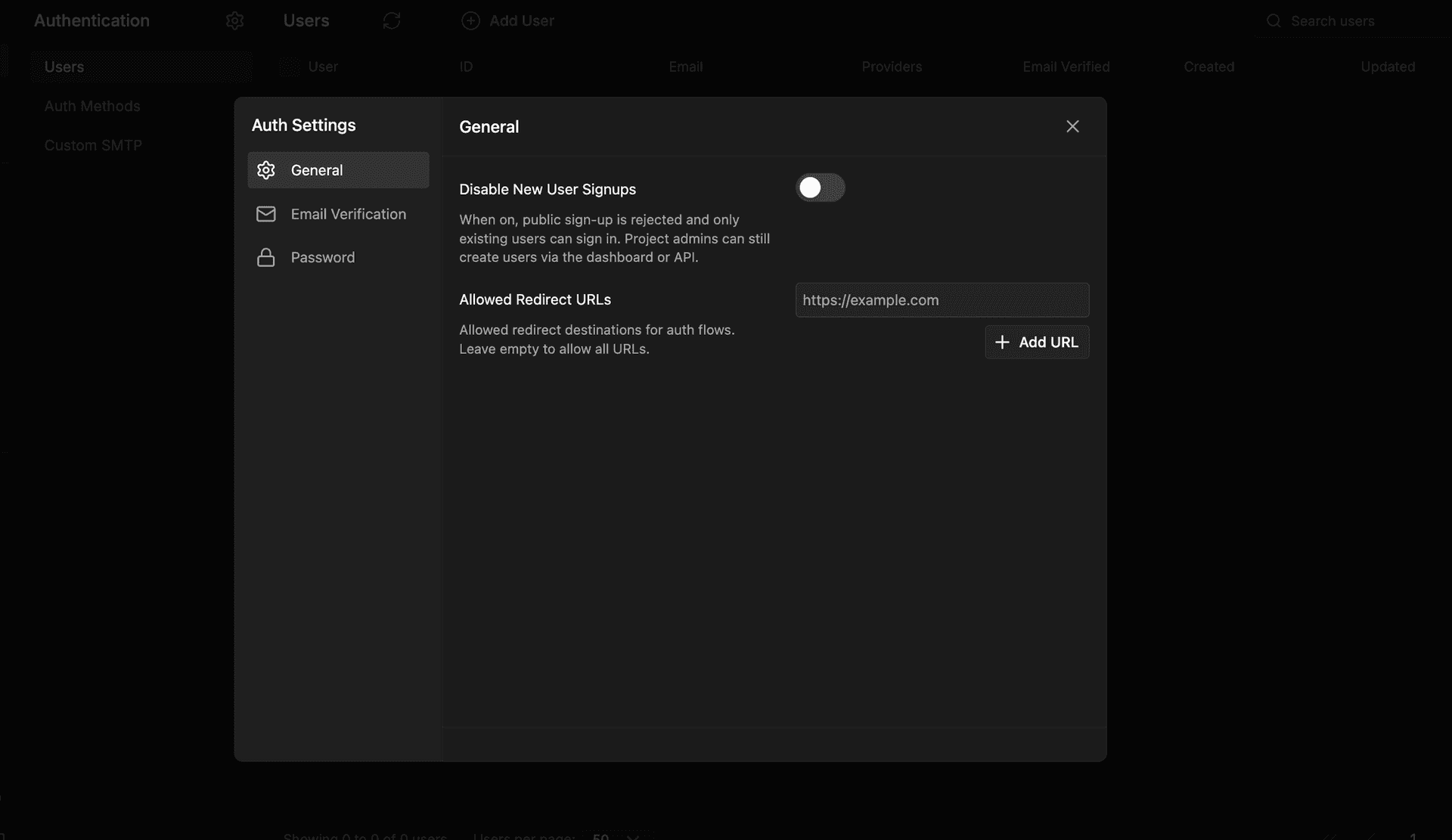
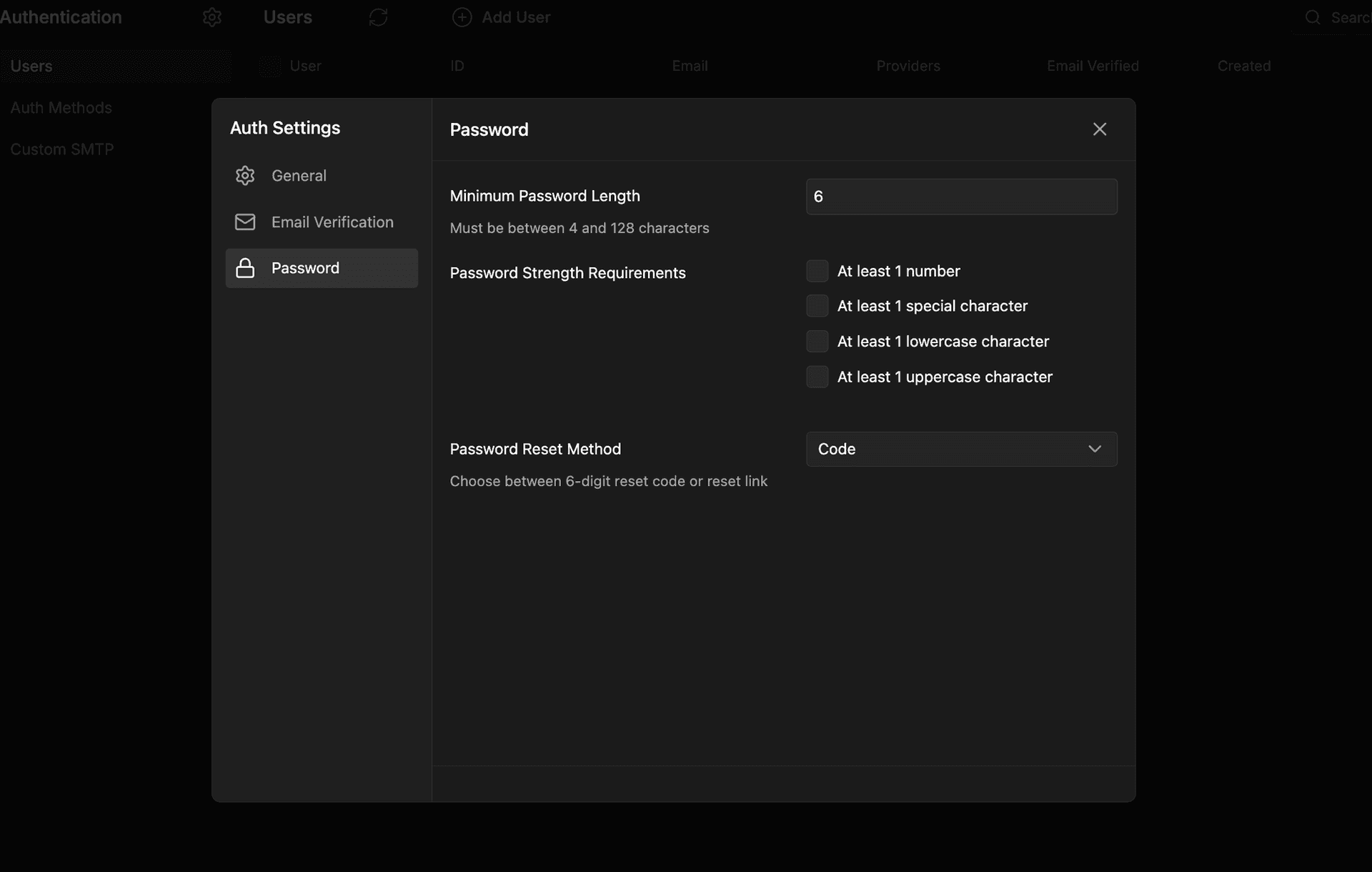
In the dashboard, that same baseline looks like this. No redirect URLs, and a minimum password length of 6 with no strength requirements:
Now edit the file. Add the production callback URL and tighten the password policy:
[auth]
allowed_redirect_urls = ["https://config-demo.example.com/auth/callback"]

[auth.password]
min_length = 12
require_number = true
require_uppercase = true
Preview the change before anything touches the backend:
$ npx @insforge/cli config plan

Plan for insforge.toml (file: insforge.toml):

  auth:
    ~ allowed_redirect_urls: [] → ["https://config-demo.example.com/auth/callback"]

  auth.password:
    ~ min_length: 6 → 12
    ~ require_number: false → true
    ~ require_uppercase: false → true

0 add, 4 modify, 0 remove, 0 untracked kept.
Every change shows as ~ old → new. Nothing is applied yet. This is the diff you would put in a pull request. When it looks right, apply it:
$ npx @insforge/cli config apply --auto-approve

  auth:
    ~ allowed_redirect_urls: [] → ["https://config-demo.example.com/auth/callback"]
  auth.password:
    ~ min_length: 6 → 12
    ~ require_number: false → true
    ~ require_uppercase: false → true

✓ Applied 4 of 4 change(s).
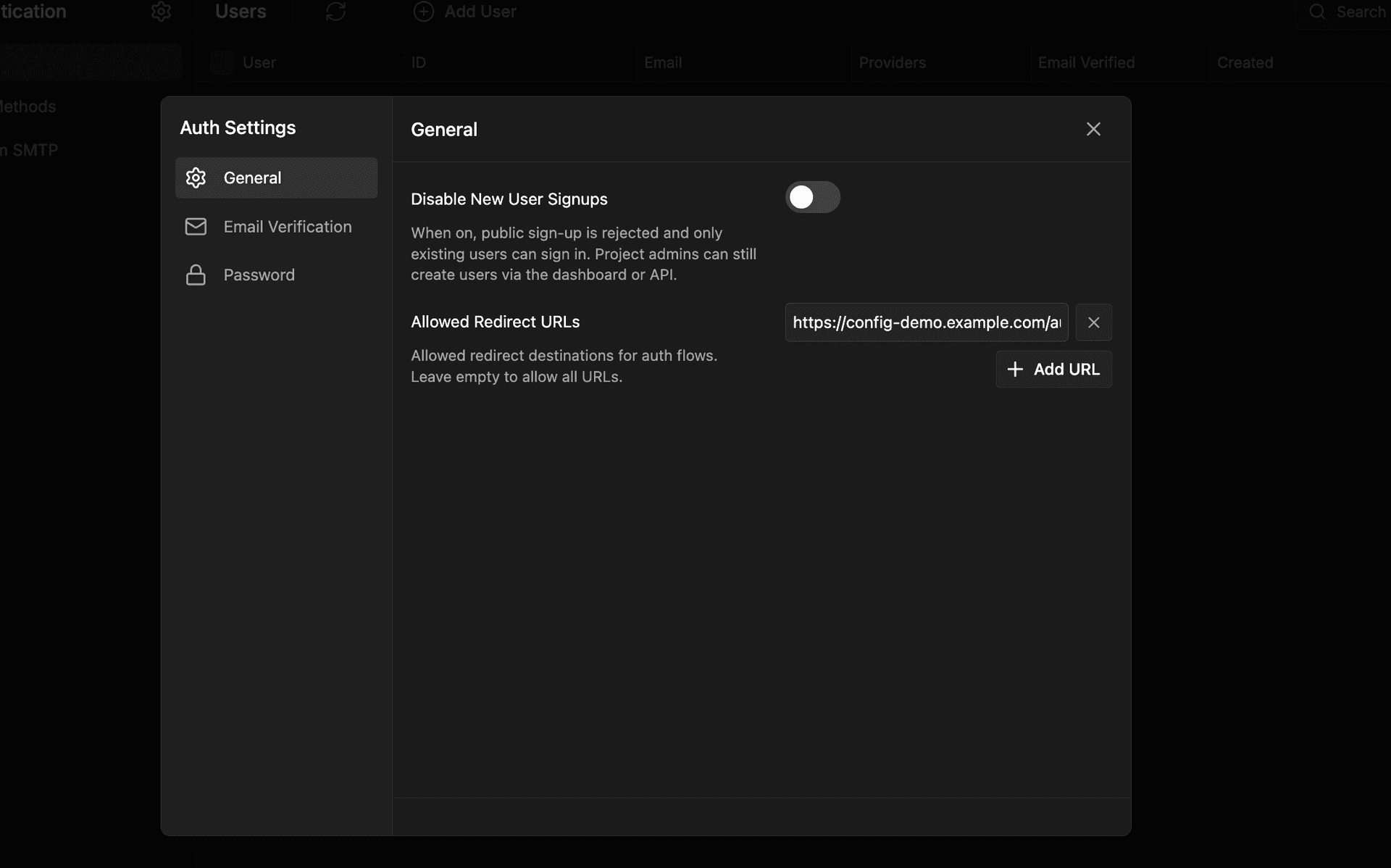
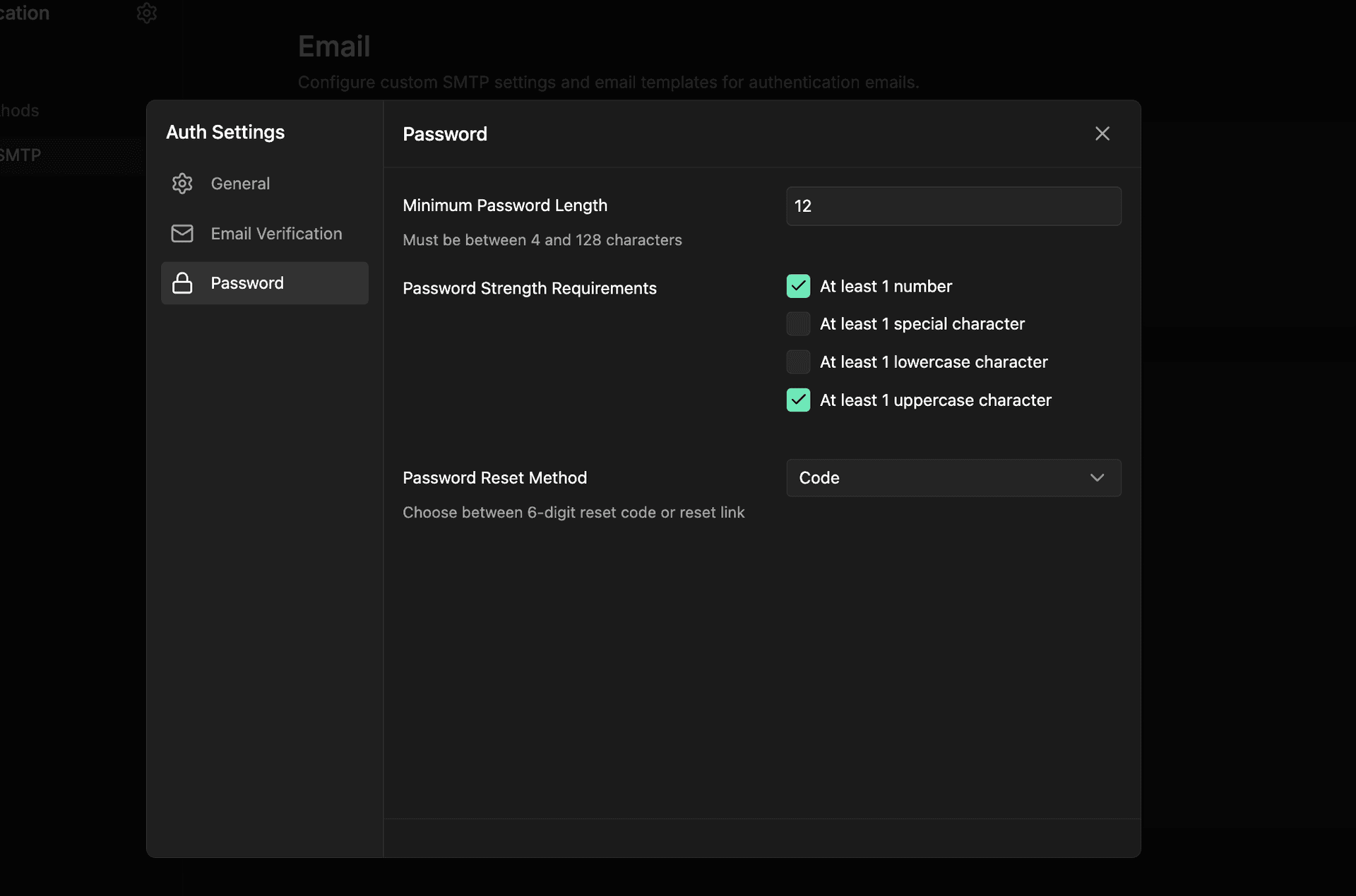
Back in the dashboard, the live project now reflects the file. The redirect URL is registered, and the password policy is tightened:
Run plan again and you get the property that makes this safe to put in CI:
$ npx @insforge/cli config plan

No changes. Live state matches insforge.toml.
apply is idempotent. Run it twice and the second run is a no-op. There is no "infinite diff," and a dashboard edit a teammate made between your export and your apply shows up in the plan as a ~ change before you confirm, so it never gets silently clobbered.
One File, Every Environment
The same insforge.toml applies to dev, staging, and prod. Point the CLI at a different project and run apply:
npx @insforge/cli --project-id <staging-project-id> config apply
Secrets never live in the file. Sensitive fields use env(...) references that resolve from the local environment at apply time:
[auth.smtp]
host = "smtp.sendgrid.net"
port = 587
password = "env(SENDGRID_API_KEY)"
So the file is safe to commit, and dev and prod differ only in which SENDGRID_API_KEY is in scope when you run apply. Run config apply --auto-approve --json from a deploy pipeline, and config plan as a pull request check, and config changes get the same review and rollout discipline as code. This works the same on InsForge Cloud and on self-hosted OSS deployments.
What Covers
| Section | Keys |
|---|---|
[auth] | allowed_redirect_urls, require_email_verification, verify_email_method, reset_password_method |
[auth.password] | min_length, max_length, require_uppercase, require_lowercase, require_number, require_special_char |
[auth.smtp] | enabled, host, port, username, password, sender_email, sender_name, min_interval_seconds |
[deployments] | subdomain |
Anything not in this list still lives on the dashboard and the API. Schema, RLS policies, and function code stay where they belong, in migrations/*.sql and your functions directory, not embedded as strings in a TOML file.
Get Started
- Link your project:
npx @insforge/cli link --project-id <your-project-id> - Export the current config:
npx @insforge/cli config export - Commit
insforge.toml, edit it, and runconfig planthenconfig apply