
InsForge now supports Backup & Restore.
Starting with v2.0.8, every project can create long-term database backups and roll back to any of them on demand. More developers are running production workloads on InsForge, and keeping their data recoverable should not require a side script.
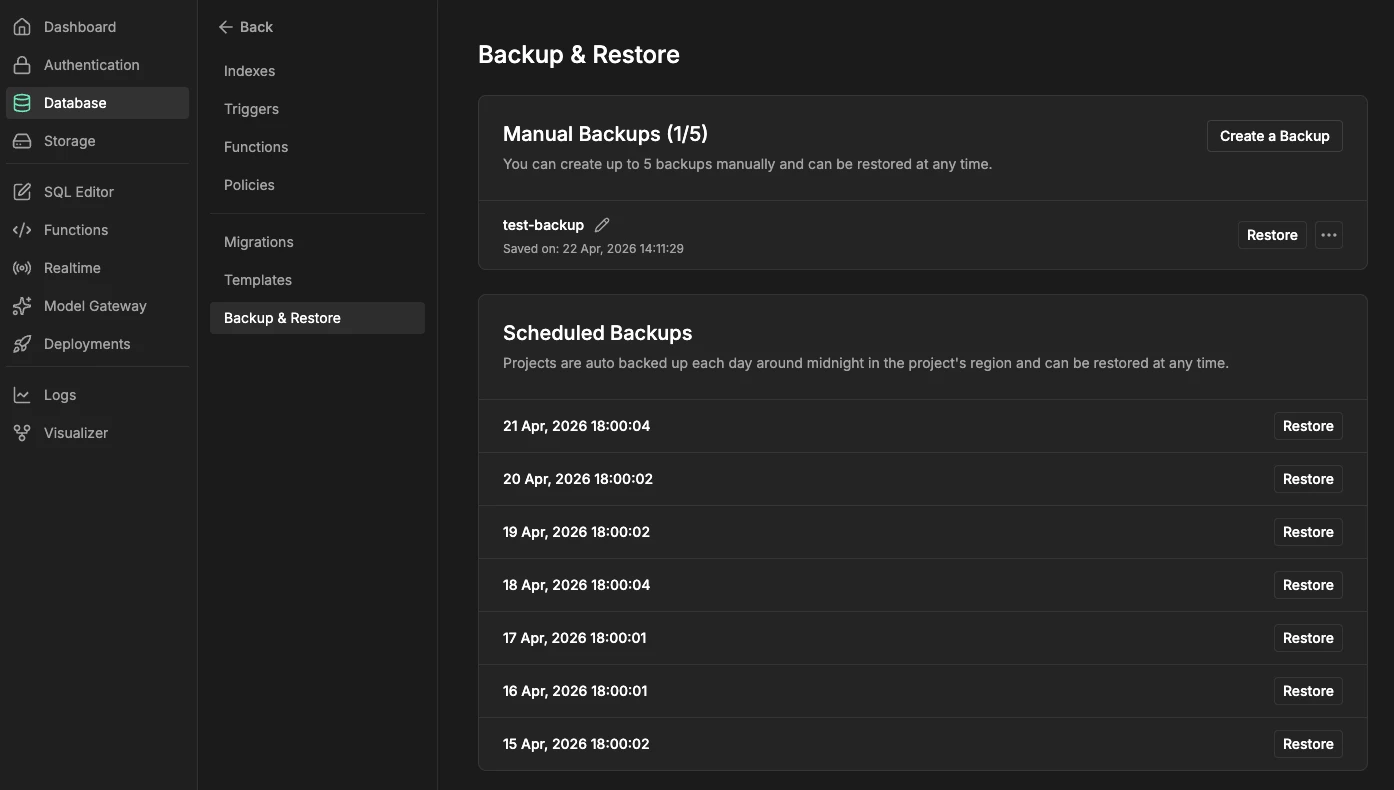
You'll find it in the project dashboard under Database → Database Studio → Backup & Restore.
How It Works
Click Create Backup to snapshot the current database. Backups are long-term — they stay in the list until you delete them. When you've hit the manual-backup quota, delete an older backup first to free a slot; InsForge will never overwrite a backup on its own.
To roll back, pick a backup from the list and click Restore. The project database is restored to that snapshot. That's the whole workflow.
Plan Limits
| Plan | Manual Backups | Automatic Daily Backups |
|---|---|---|
| Free | 1 active backup | — |
| Paid | 5 active backups | 7-day rolling, separate quota |
The action is available on every project. Plans differ only in how many backups you can keep:
- Free — one active manual backup. To create another, delete the existing one first.
- Paid — up to five active manual backups. Once the slots are full, delete one before taking a new snapshot. Automatic daily backups (a rolling week) live in a separate quota.
Automatic Daily Backups
For paid projects, InsForge now takes a scheduled backup every day and retains it for seven days. These run in the background and sit outside the manual-backup quota, so you always have a rolling week of recovery points regardless of what you've saved by hand.
Manual and automatic backups restore the same way — one click from the Backup & Restore list.
Get Started
- Open your project dashboard
- Go to Database → Database Studio → Backup & Restore
- Click Create Backup to snapshot the current database
- Restore any backup from the list with one click
If there's backup behavior you'd like to see — export to S3, point-in-time restore, cross-project clone — drop it on the roadmap.