
Modern applications rely on user-generated content such as comments, reviews, and messages. Platforms must moderate this content to enforce safety policies and maintain compliance. Manual moderation does not scale, so production systems typically rely on automated moderation pipelines powered by AI.
Traditional implementations require multiple backend services. Developers often provision servers, integrate AI APIs, manage databases, and configure storage separately. This fragmented setup increases operational overhead and slows development.
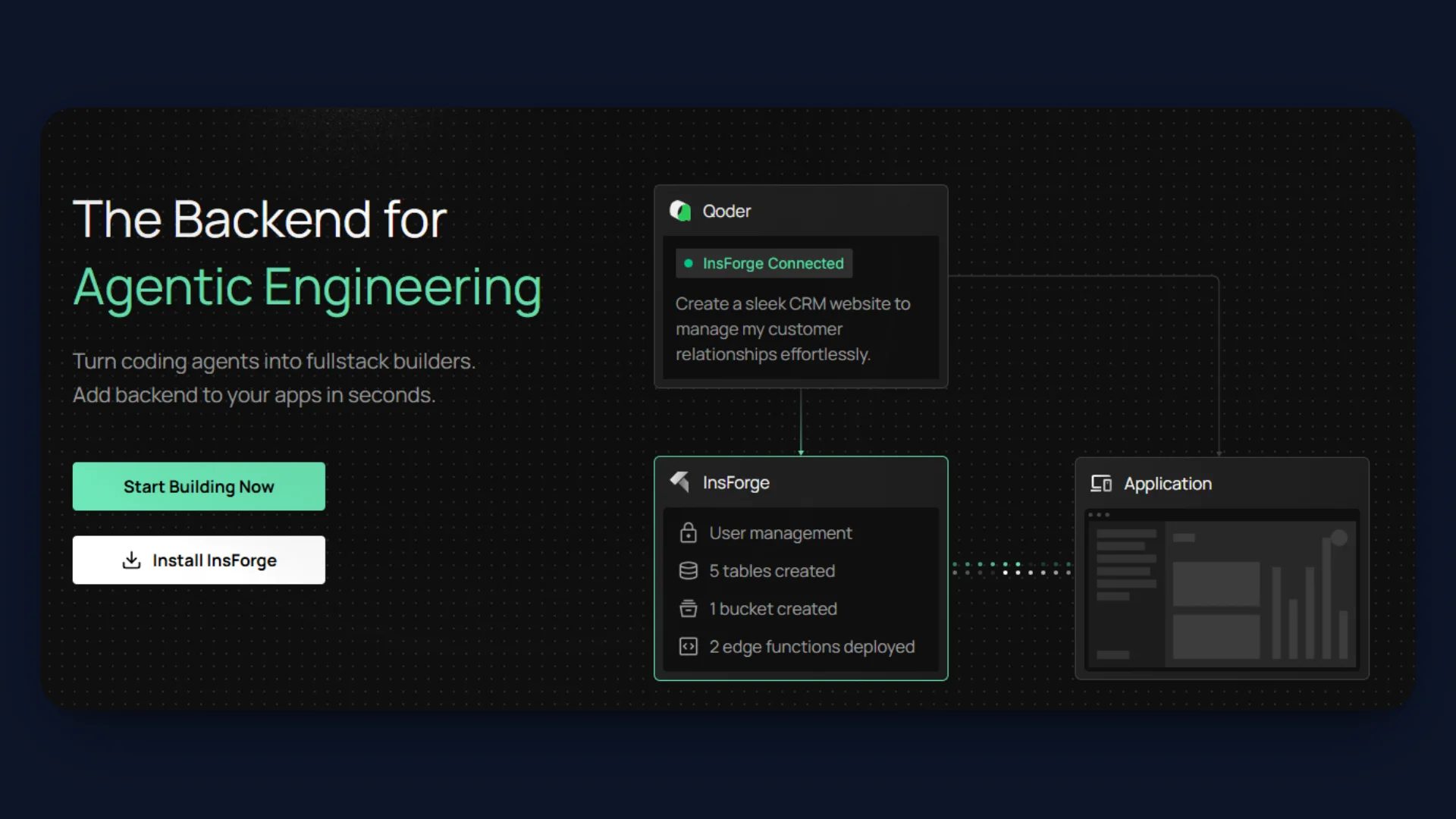
InsForge simplifies this architecture by combining Edge Functions, PostgreSQL Database, Storage, and Model Gateway in a single platform. Benchmarks also show that it can deliver ~1.6x faster responses and 2.4x lower token usage compared to fragmented integrations.
In this tutorial, we will build a production-ready AI moderation API that runs entirely within InsForge.
What We Are Building
Here are the tools that we will be using to build a simple backend moderation workflow using InsForge core services:
- AI Moderation API Endpoint: We will create an API endpoint using Edge Functions that accepts user-submitted text content and processes moderation requests.
- AI-Powered Content Evaluation: The API will use Model Gateway to access an AI model that classifies submitted content as SAFE or UNSAFE.
- Database Storage for Approved Content: Approved comments will be stored in a PostgreSQL Database managed by InsForge.
- Attachment Handling with Storage: Optional user attachments will be uploaded and stored using Storage Buckets.
- Automated Moderation Response: Unsafe content will be rejected immediately, and the API will return a structured moderation response.
- Production-Ready Backend Workflow: The moderation pipeline will run entirely within InsForge using Database, Edge Functions, Model Gateway, and Storage, without external servers or additional infrastructure.
Project Setup and Repository Structure
Before configuring the backend resources, clone the project repository and review the project structure.
git clone https://github.com/Studio1HQ/Content-moderation-Insforge
cd content-moderation-app
Install dependencies:
npm install
The repository contains both the Next.js frontend and the InsForge Edge Function used for moderation.
Repository Structure
| Folder | Purpose |
|---|---|
src/app | Next.js application pages and layouts |
src/components | UI components such as the moderation form |
src/lib | Client utilities for connecting to InsForge APIs |
insforge-functions/moderate-comment | Edge Function implementation for moderation |
handler.ts | Serverless function that processes moderation requests |
This structure keeps the frontend and backend logic organized within the same project while allowing the Edge Function to be deployed independently.
After cloning the repository, proceed with configuring the backend resources in InsForge.
Note: You can set up this backend in two ways. Follow the manual steps in this tutorial to create the database, storage bucket, and Edge Function using the dashboard and CLI. Alternatively, you can use InsForge MCP with your AI coding agent to provision the same resources using a single prompt. See the MCP section at the end of the article for the prompt template and instructions.
Step 1: Setting Up the Database
InsForge provides a managed PostgreSQL Database that you can configure directly from the dashboard.
Open the Tables Section
- Open your project in the InsForge Dashboard.
- In the left sidebar, select Tables.
- Click the + icon next to Tables.
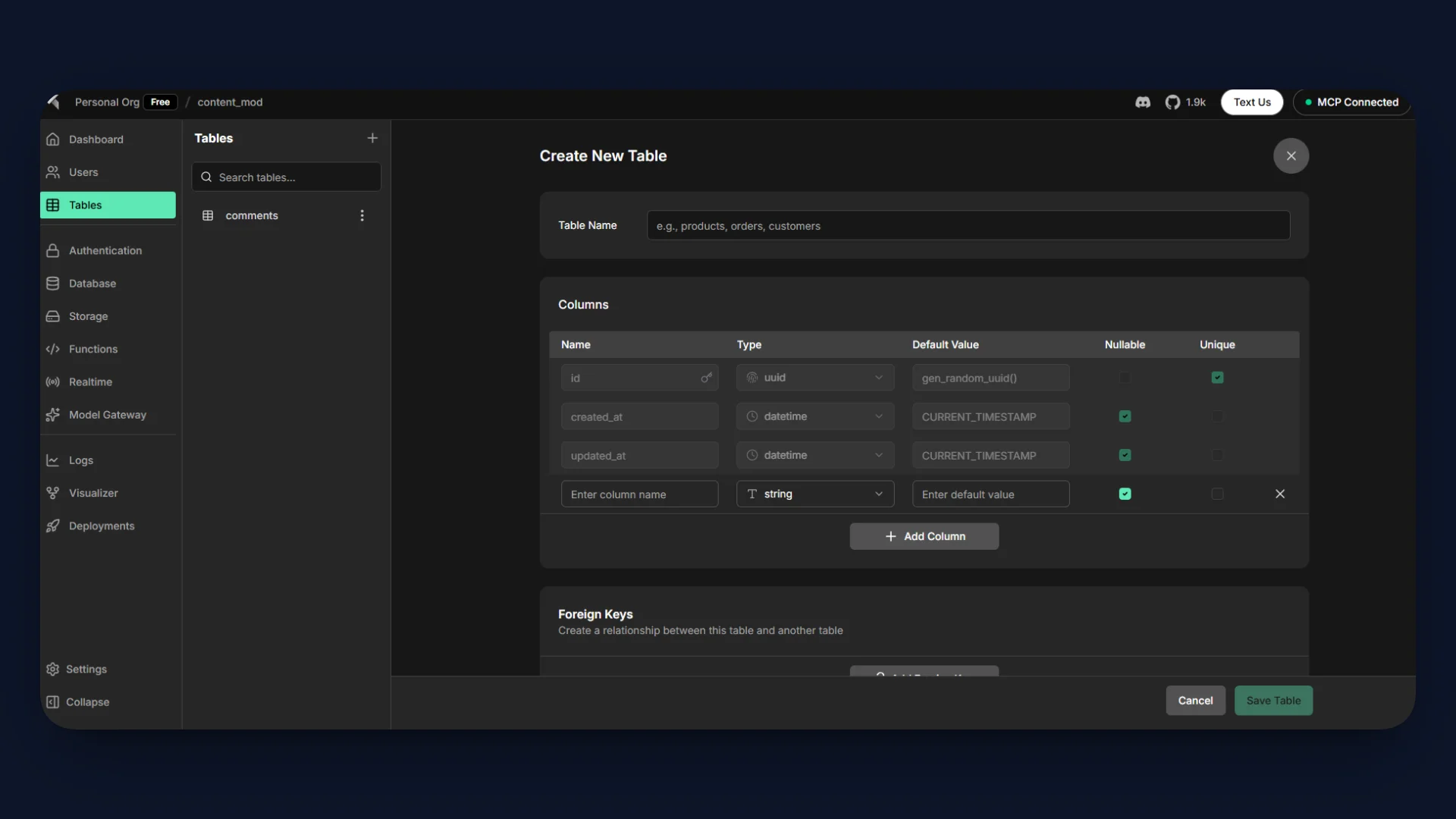
Create the following columns.
| Column | Type | Description |
|---|---|---|
id | uuid | Primary key for each comment |
content | string | User submitted comment text |
attachment_url | string | URL for uploaded file (optional) |
status | string | Moderation result (approved or rejected) |
created_at | timestamp | Time when the comment was created |
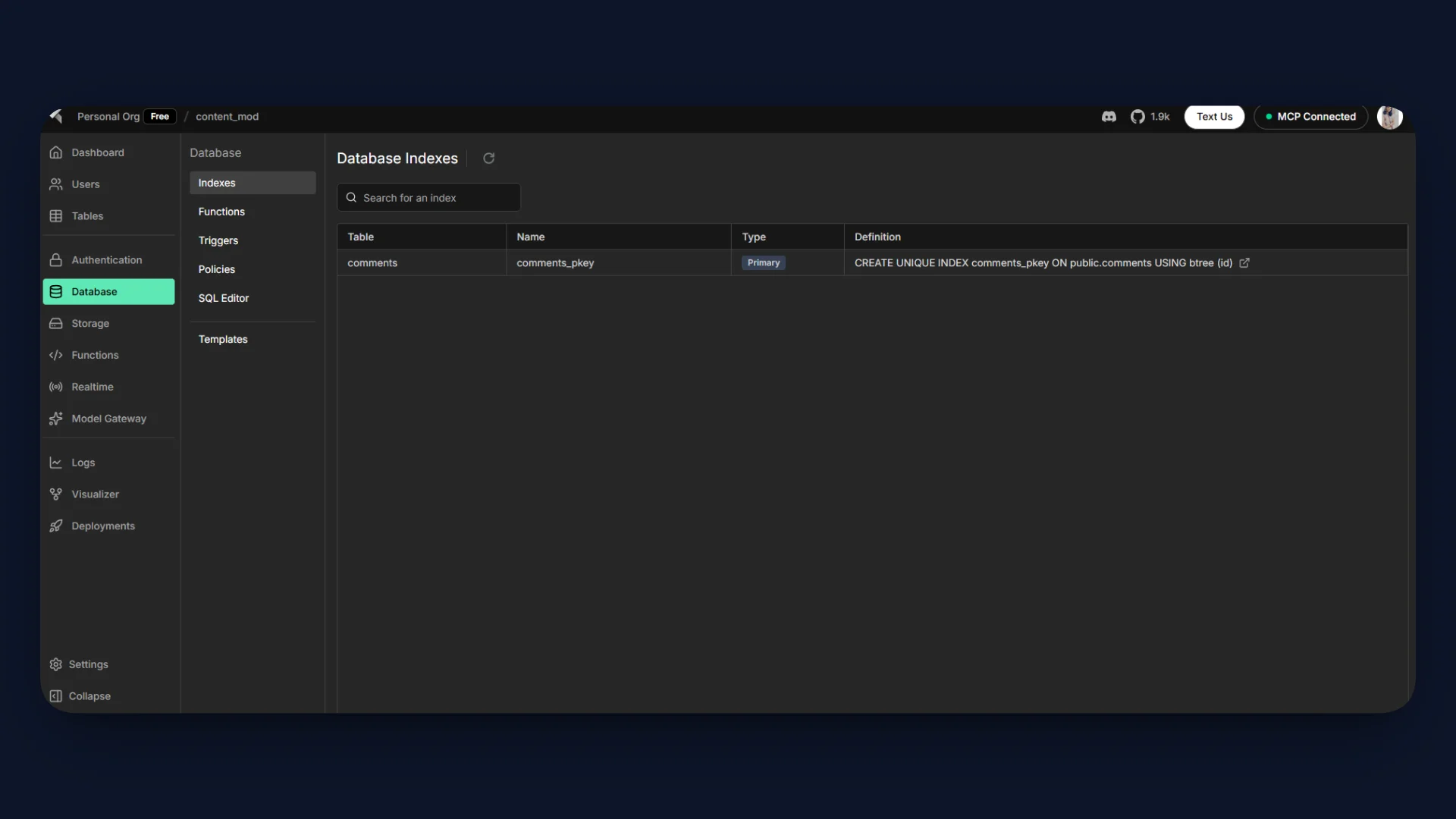
Save the Table
- Click Create Table to apply the schema.
- The
commentstable will appear in the Tables panel.
Step 2: Creating the Edge Function
Next, create the serverless API that will process moderation requests.
InsForge Edge Functions allow you to run backend logic without managing servers. In this tutorial, the function receives user content, evaluates it using AI, and stores approved results in the database.
Navigate to the Edge Function directory in the repository:
insforge-functions/moderate-comment/
Inside this folder, there will be a file named:
handler.ts
This file will contain the moderation logic executed by the Edge Function.
The Edge Function performs the following tasks:
- Accept a POST request containing user content.
- Send the content to the AI model through Model Gateway.
- Classify the content as SAFE or UNSAFE.
- Upload attachments to Storage if present.
- Insert approved content into the comments table.
- Return a structured moderation response.
All moderation logic runs inside the Edge Function, keeping the backend workflow centralized within InsForge.
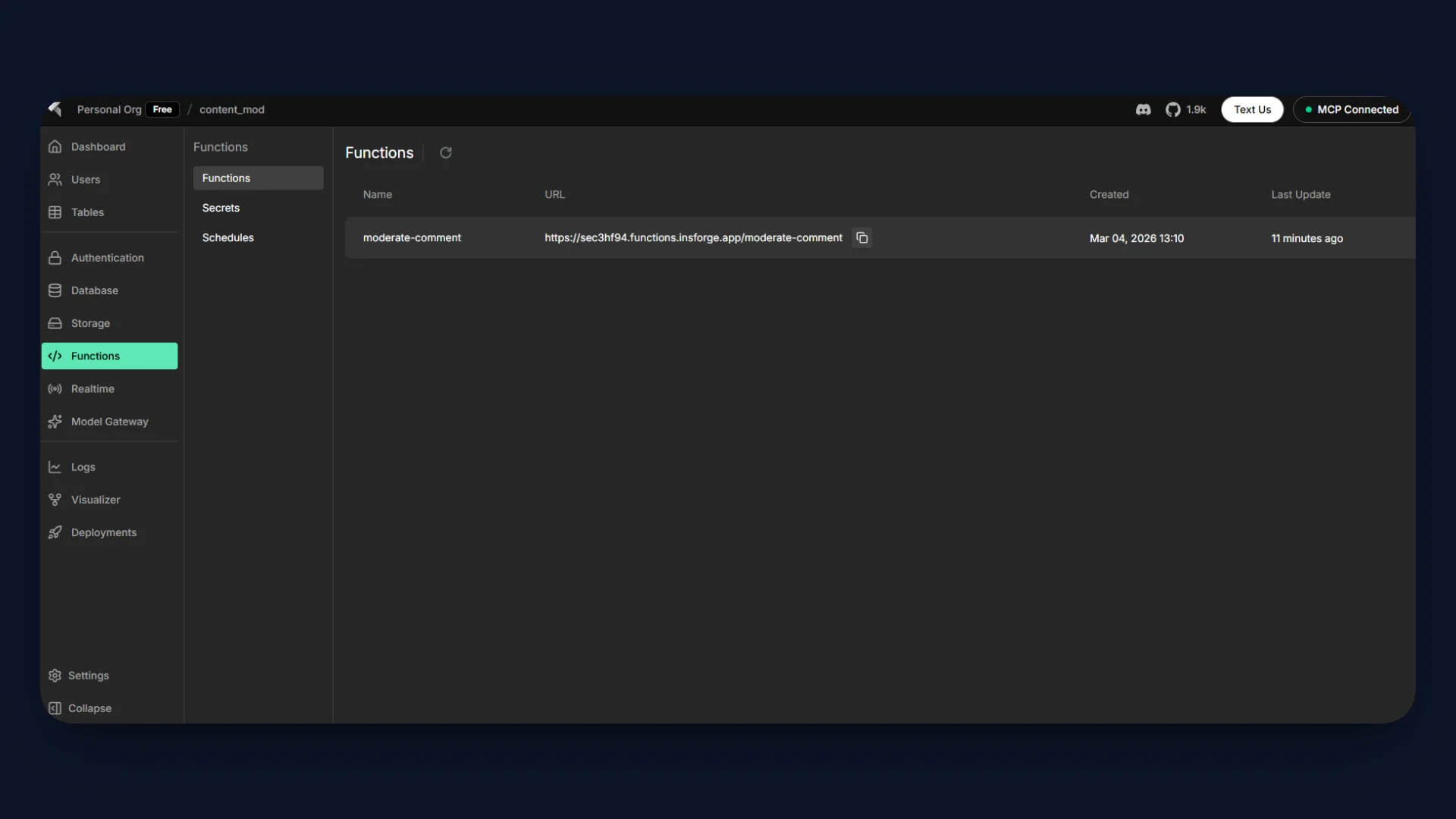
Deploy the function using the InsForge CLI:
insforge functions deploy moderate-comment --file ./insforge-functions/moderate-comment/handler.ts
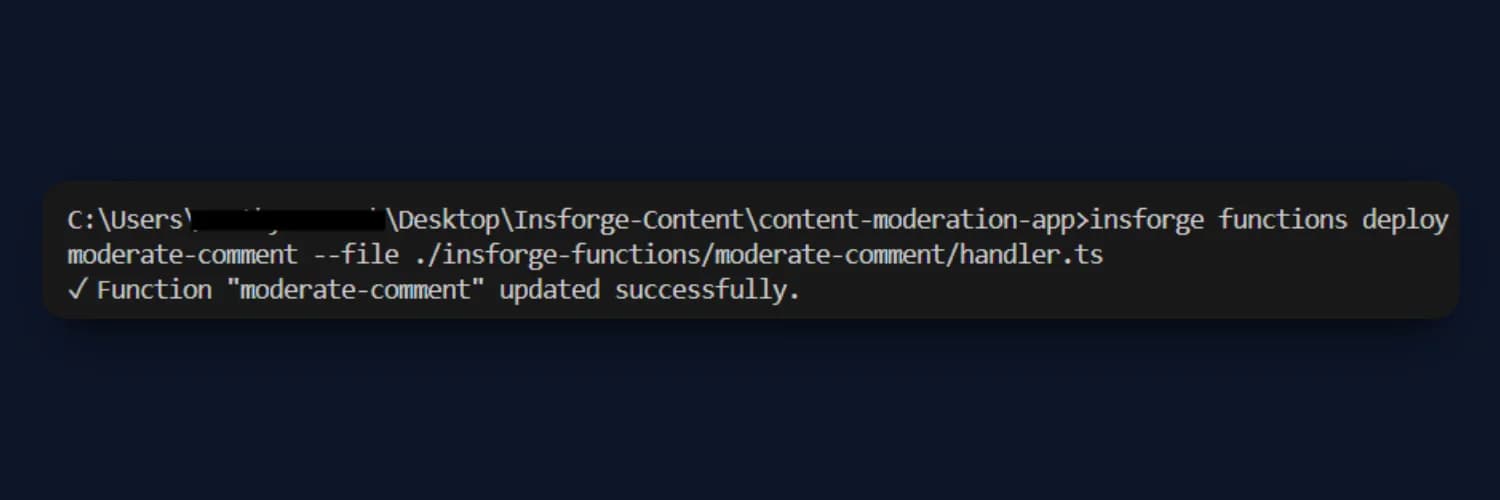
Once deployed, the function becomes available as a backend API endpoint that the frontend application can call.
Step 3: AI Integration Inside the Function
The moderation logic inside the Edge Function uses Model Gateway, which provides unified access to multiple AI models directly within InsForge.
Model Gateway allows Edge Functions to call AI models without configuring external API clients or managing provider-specific integrations.
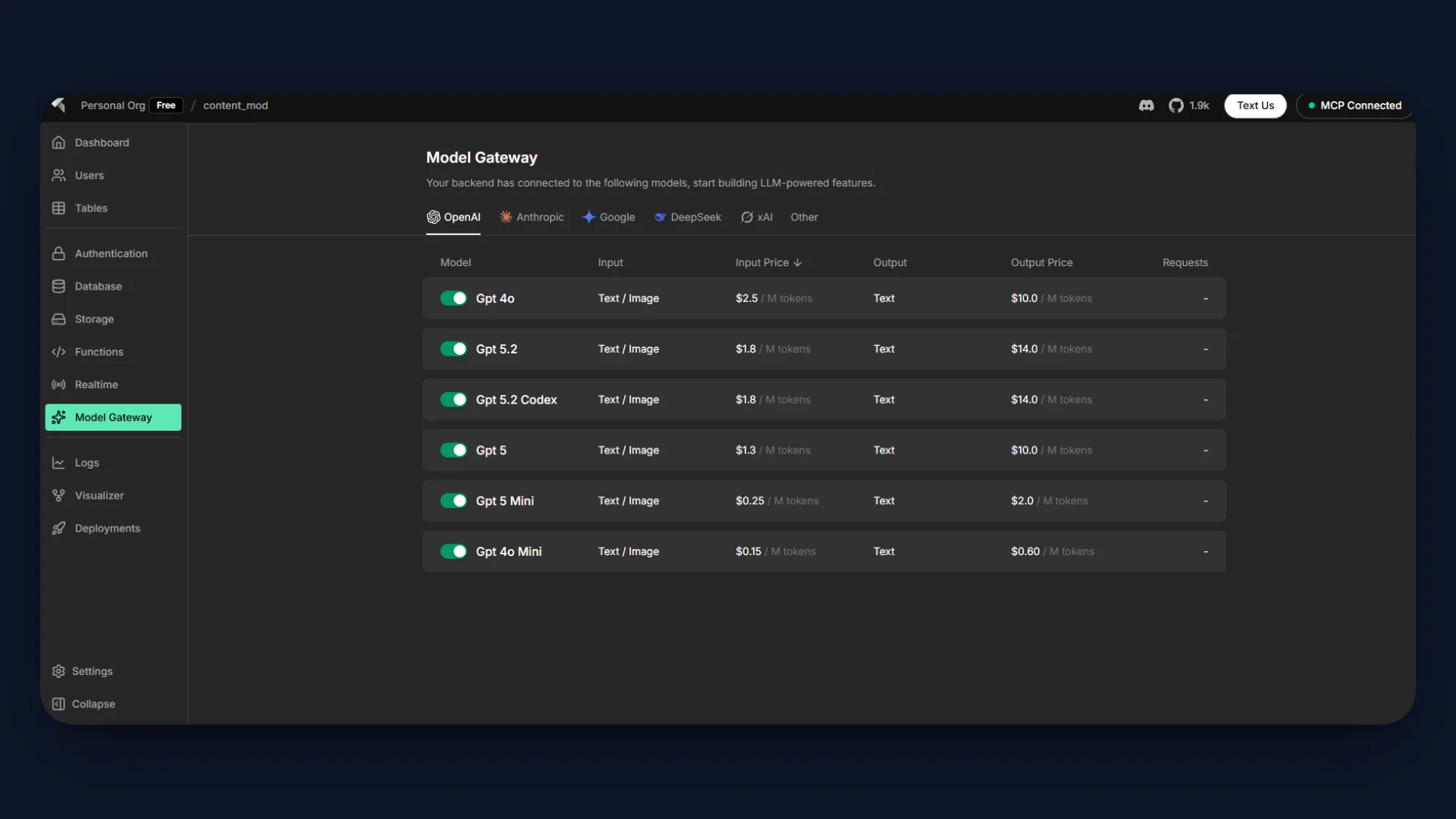
Open the Model Gateway section in the InsForge dashboard and enable a model for the project.
For this tutorial, enable:
openai/gpt-4o-mini
This model will be used to classify incoming content during moderation.
Use the CLI to send a test request to the moderation API.
insforge functions invoke moderate-comment --data "{\"content\":\"This community platform is very helpful.\"}"
This command sends a JSON payload containing the content field to the Edge Function.
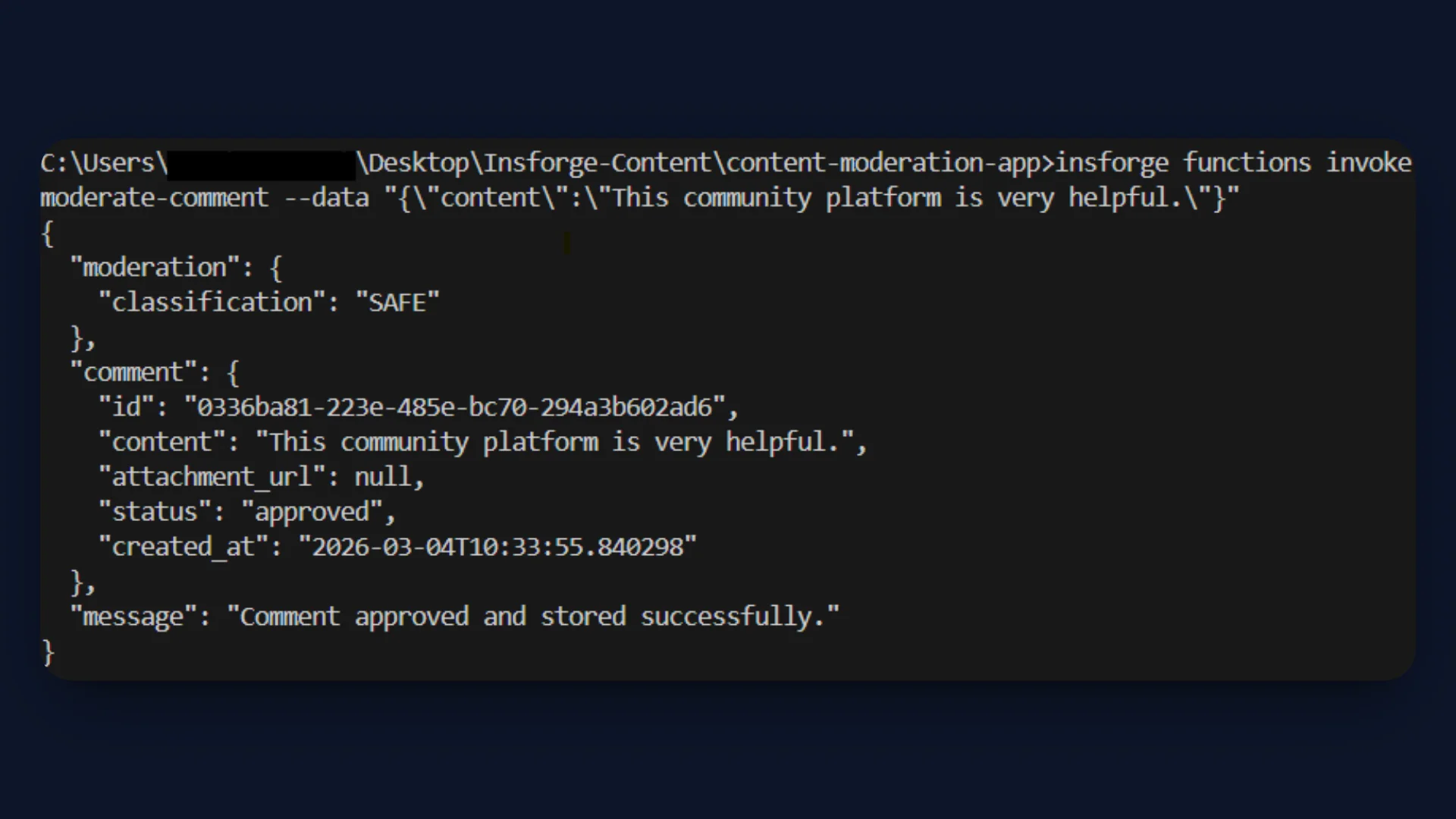
The Edge Function also inserts the approved comment into the comments table in the database.
Step 4: Configuring InsForge Storage
The moderation workflow also supports optional file uploads using InsForge Storage. Storage provides an S3-compatible object storage system that integrates directly with Edge Functions and the database.
When a user submits a comment with an attachment, the Edge Function uploads the file to a storage bucket before inserting the comment into PostgreSQL.
Create a Storage Bucket
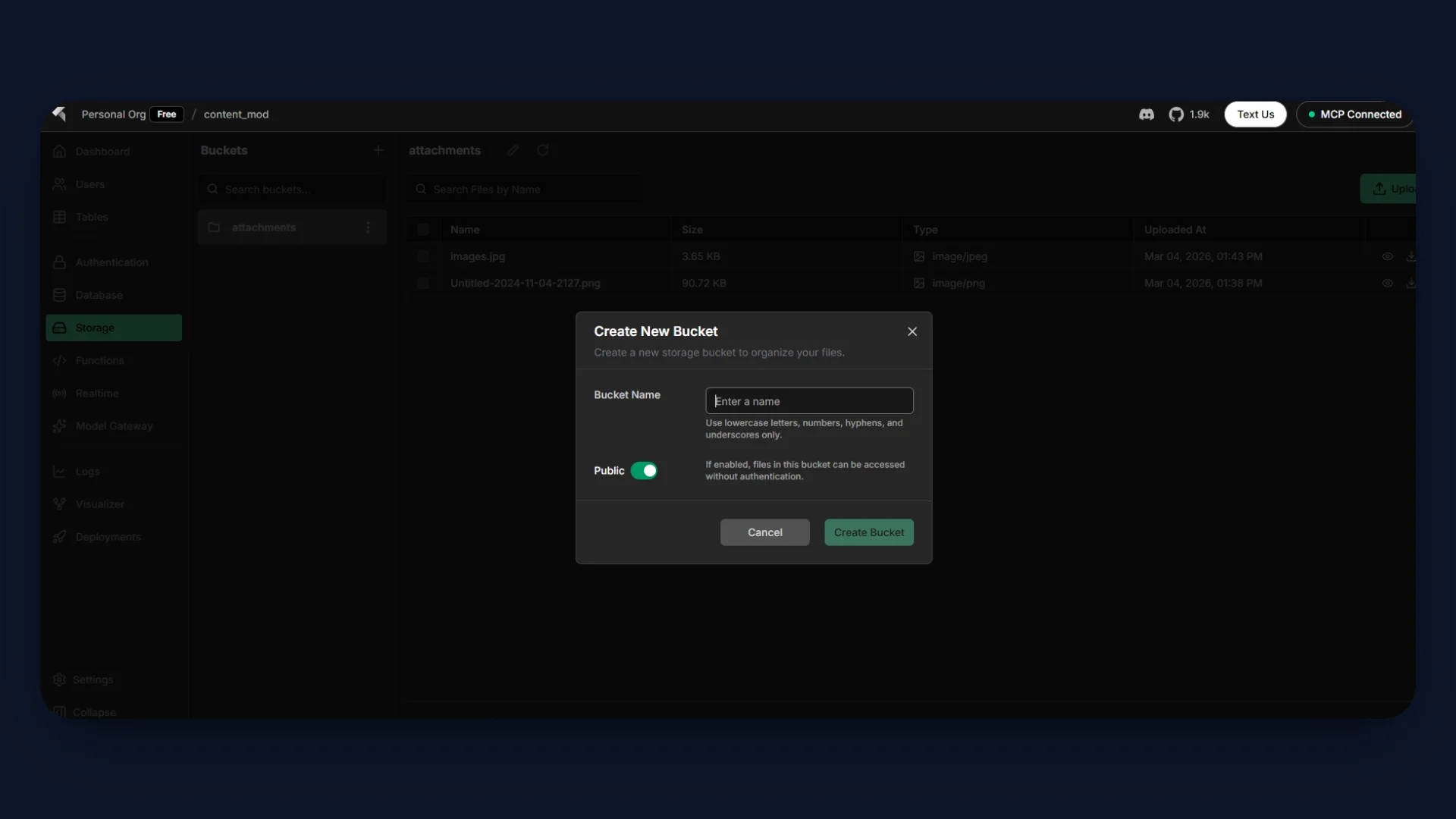
Open the Storage section in the InsForge dashboard.
- Navigate to Storage in the sidebar.
- Click Create Bucket.
- Name the bucket: attachments
This bucket will store files uploaded with moderated comments.
The upload operation returns a public file URL, which is stored in the attachment_url column of the comments table.
The moderation function processes attachments as follows:
- The user submits content with an optional file.
- The Edge Function evaluates the text using AI moderation.
- If the content is classified as SAFE, the file is uploaded to the attachments bucket.
- The returned file URL is stored in the comments table.
- If the content is UNSAFE, the function rejects the request and no file is uploaded.
This ensures that only approved content and attachments are stored, keeping the storage system aligned with the moderation rules.
Step 5: Building the Next.js UI
The repository already includes a Next.js application that provides a simple interface for interacting with the moderation API.
Navigate to the frontend code inside the src directory.
Key UI Files
| File / Folder | Purpose |
|---|---|
src/app/page.tsx | Main page that renders the moderation interface |
src/components | Reusable UI components for the moderation workflow |
src/lib/insforge.ts | Utility for connecting the frontend to the InsForge backend |
The UI includes a form where users submit content for moderation.
The form collects:
- Text content entered by the user
- Optional file attachment
- Submit an action that triggers the moderation request
When the user submits the form, the application sends a POST request to the Edge Function endpoint.
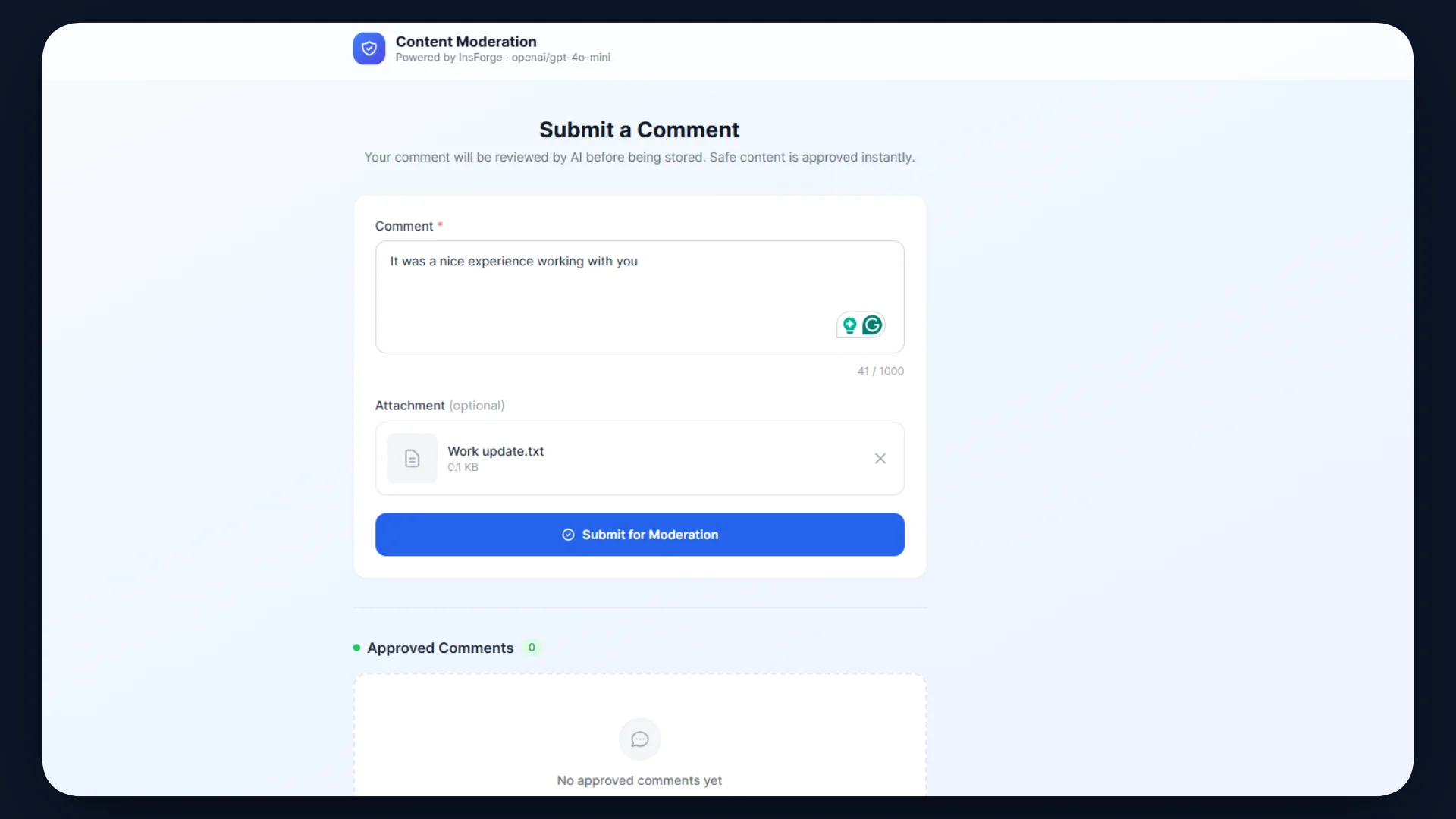
The UI handles the API response and updates the interface accordingly.
- Approved comments appear in the moderation results section.
- Rejected content displays an error message.
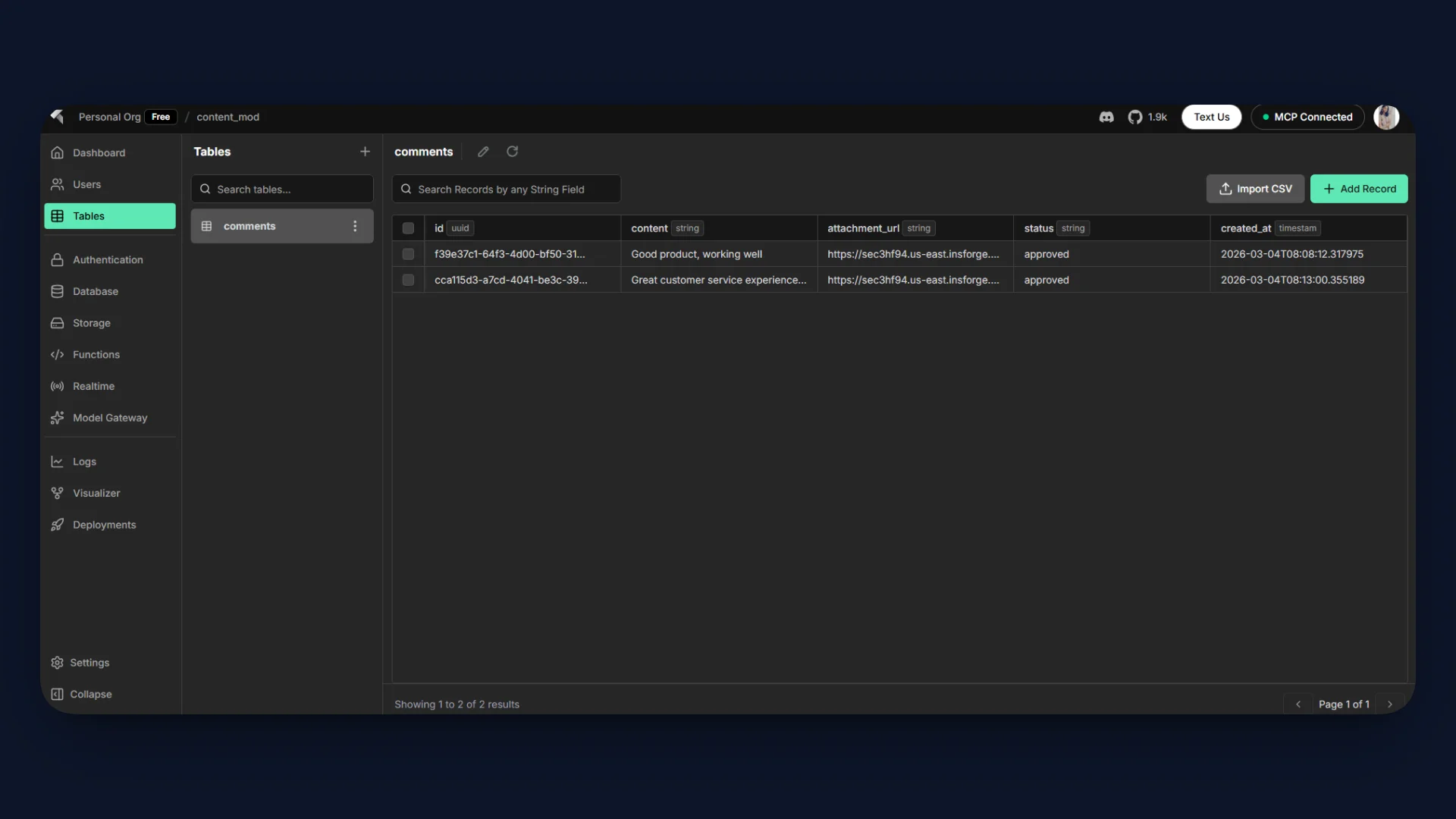
- Approved entries are also visible in the comments database table.
This setup creates a complete workflow where the Next.js UI communicates with the InsForge Edge Function to perform moderation in real time.
Using an AI Agent to Build the UI
You can also accelerate this step using an AI coding agent (such as Cursor, Claude Code, or other agent-based tools). Instead of manually writing the UI components, the agent can generate the form, API calls, and component structure based on a prompt.
Example prompt:
Create a Next.js page for a content moderation demo.

Requirements:
- A form with a textarea for user comments
- An optional file upload input
- A submit button
- Send a POST request to the InsForge Edge Function endpoint for moderation
- Display the moderation result (approved or rejected) in the UI
- Use React state to handle form submission and responses
Step 6: Testing the API Endpoint
After deploying the Edge Function and setting up the UI, test the moderation workflow to verify that the API behaves correctly.
Submit Safe Content
Enter a comment through the UI and submit the form.
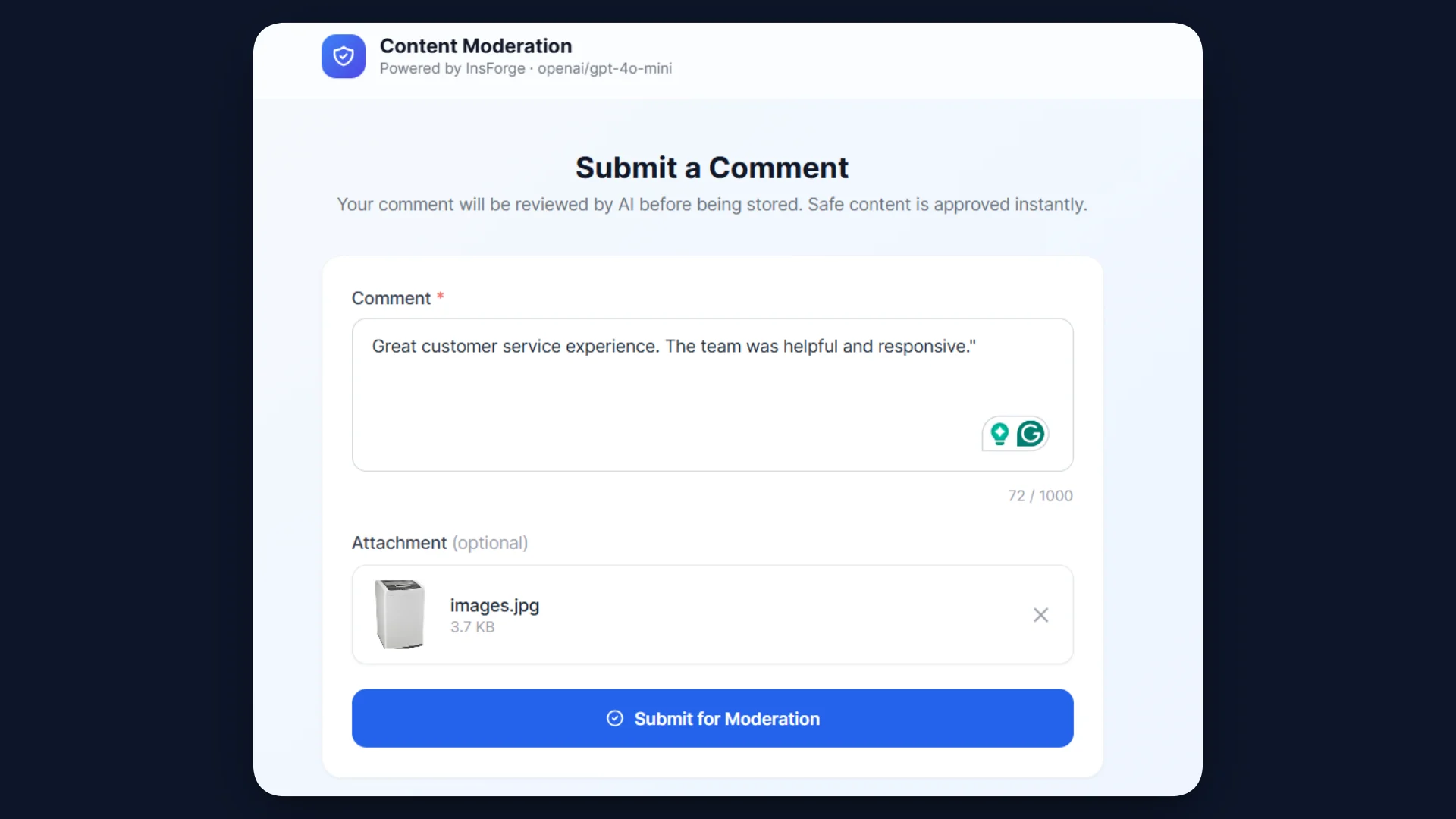
Expected behavior:
- The Edge Function sends the content to the AI moderation model.
- The model classifies the text as SAFE.
- The function inserts the comment into the comments table in PostgreSQL.
- If an attachment is included, the file is uploaded to the attachments storage bucket.
- The API returns an approved response to the frontend.
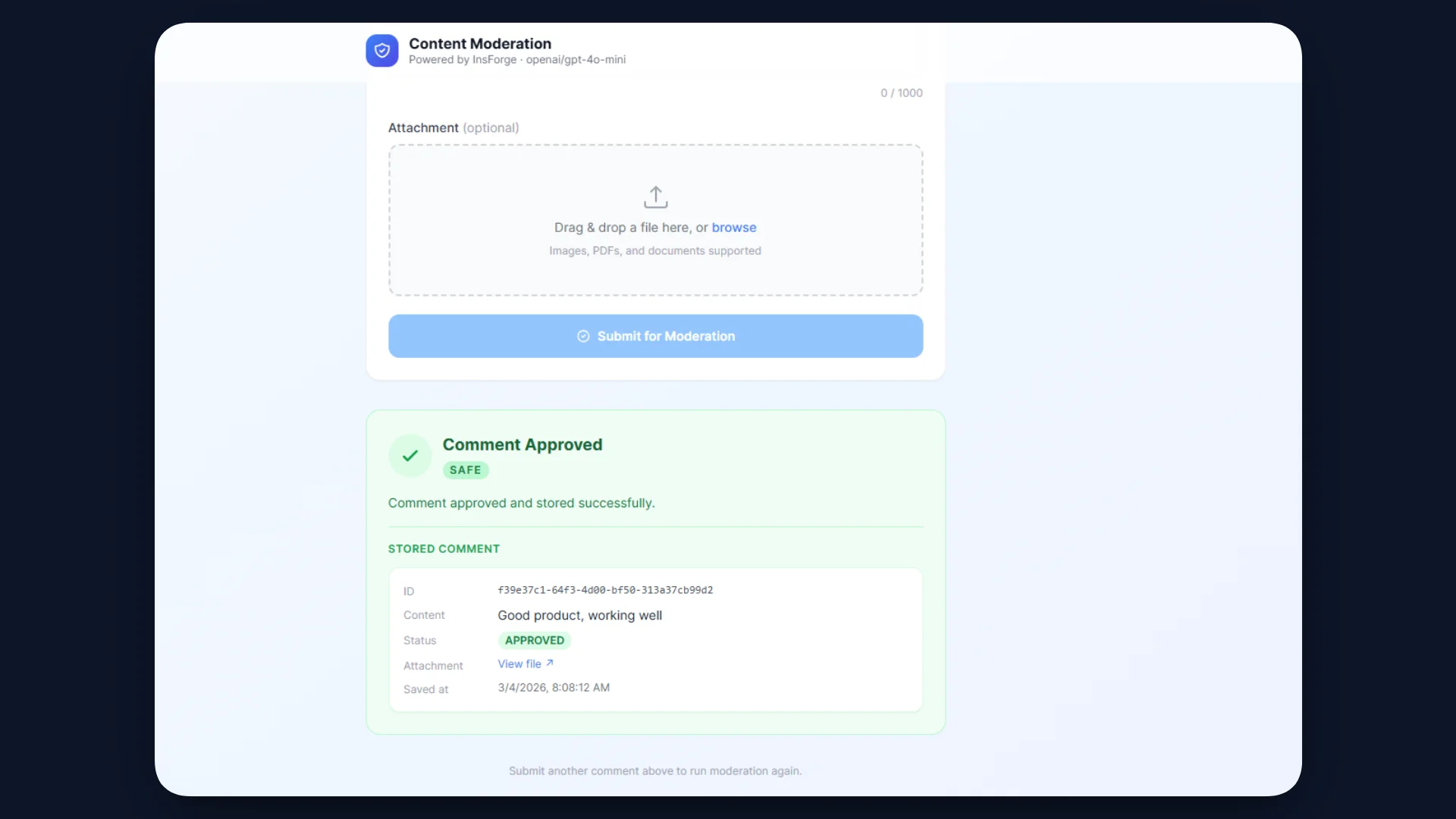
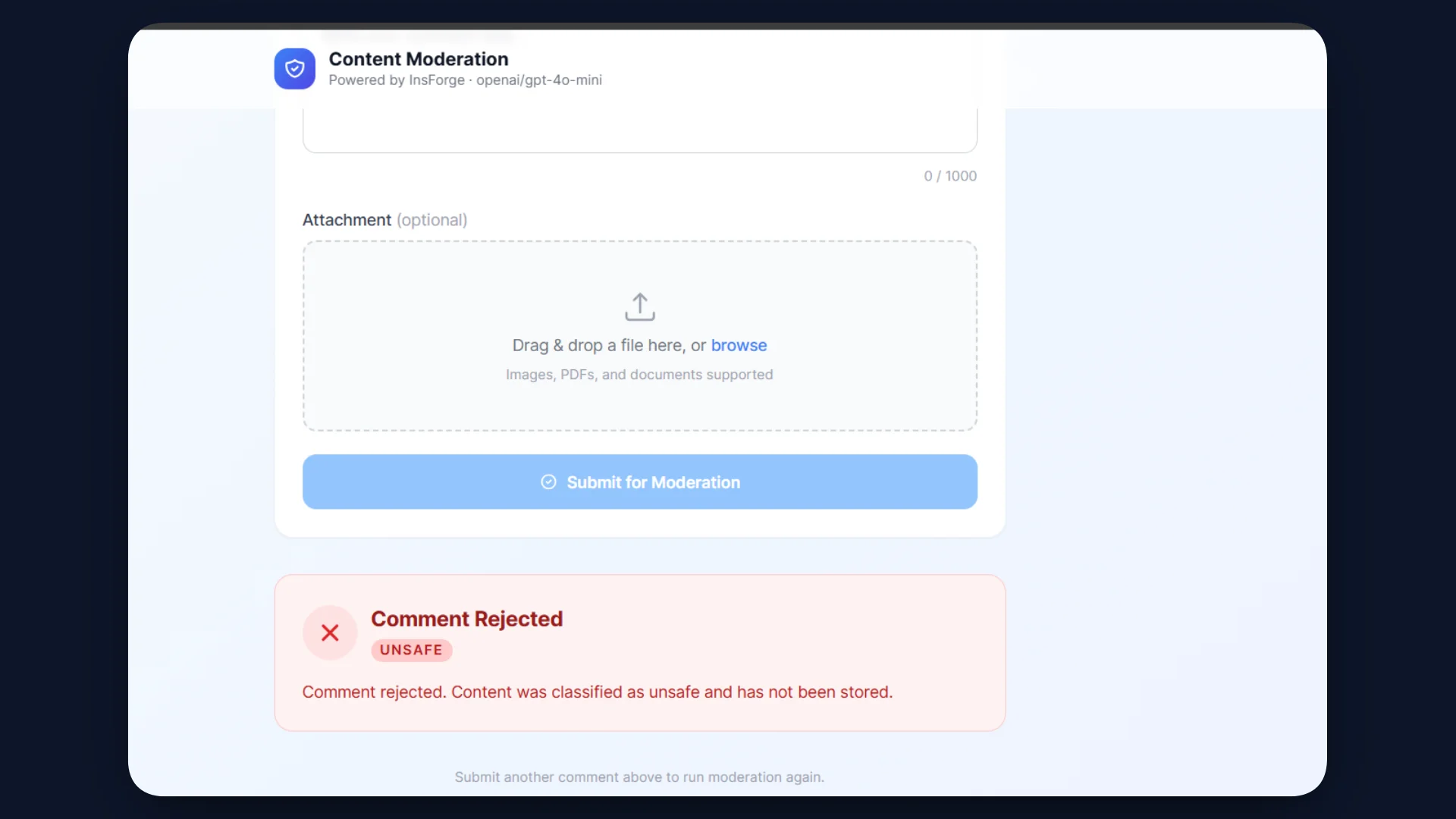
Next, test a rejection case.
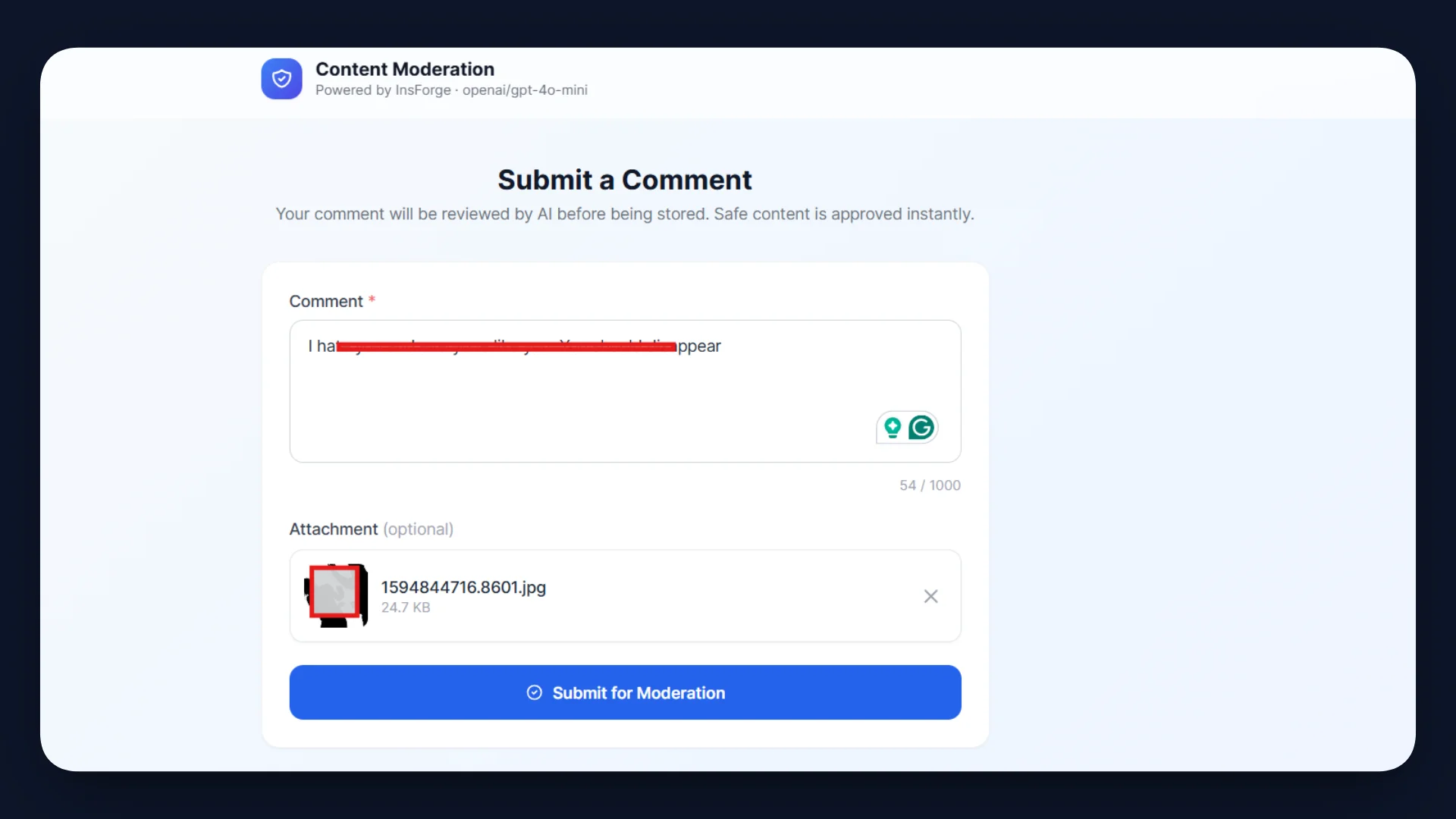
Expected behavior:
- The Edge Function sends the text to the AI moderation model.
- The model classifies the content as UNSAFE.
- The function immediately returns a rejection response.
- No entry is inserted into the comments table.
- No file is uploaded to Storage.
The table in your InsForge dashboard also reflects the results:
Step 7: Deployment Using InsForge
Once the function and UI are ready, deploy the backend using the InsForge CLI. This publishes the Edge Function and connects it to the project environment.
Refer to the deployment guide here.
Authenticate the CLI with your InsForge account.
insforge auth login
Complete the authentication process in the browser. Link the local project directory to your InsForge backend.
insforge link
Select the project created earlier in the InsForge dashboard. This connects the CLI to the correct backend workspace.
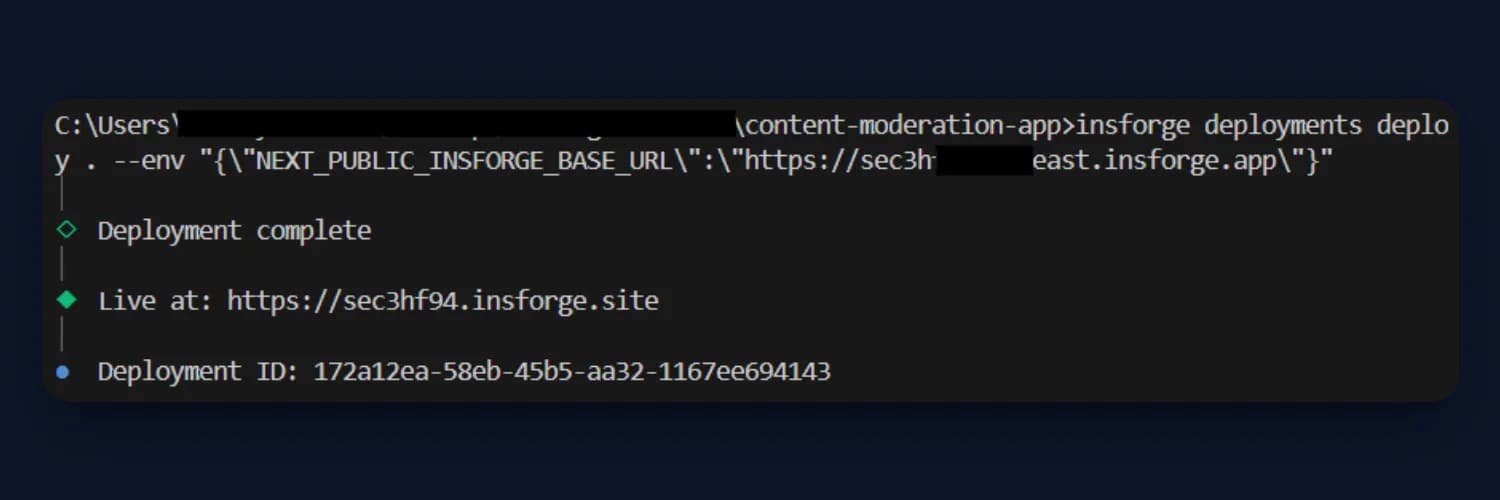
Deploy the Next.js application while passing the required environment variable.
insforge deployments deploy . --env "{\"NEXT_PUBLIC_INSFORGE_BASE_URL\":\"https://your-project.insforge.app\"}"
This environment variable allows the frontend to communicate with the deployed Edge Function.
Verify the Deployment
After deployment, the application becomes accessible via the InsForge-hosted domain.
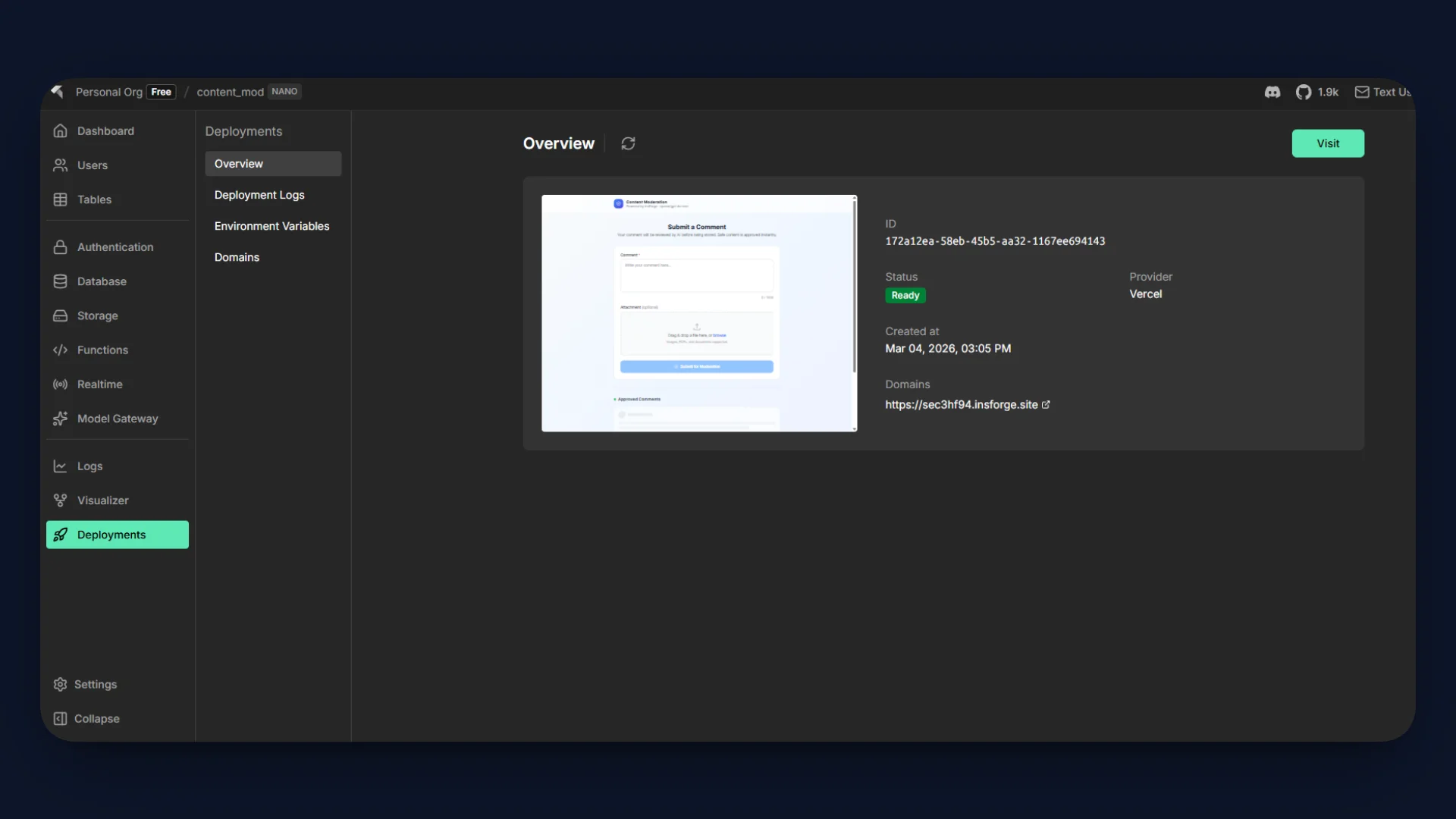
Access the live demo here.
Using MCP to Accelerate Development
Instead of manually creating tables, storage buckets, and Edge Functions, you can also configure the backend using Remote MCP (Model Context Protocol).
MCP exposes InsForge backend capabilities as tools that an AI coding agent can call to provision resources automatically. With a single prompt, the agent can generate the database schema, configure storage, and deploy the moderation function.
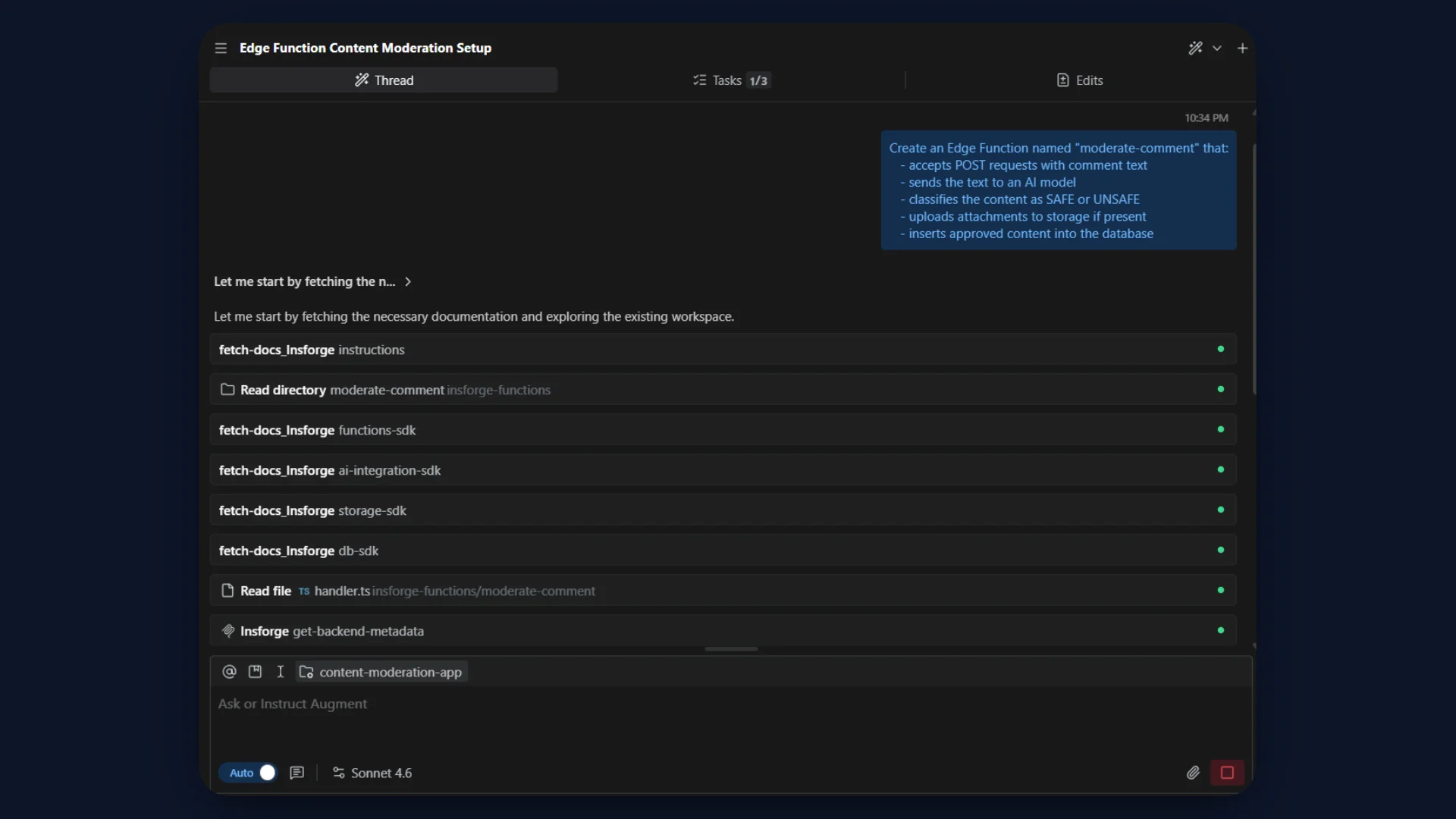
Example prompt used to create this backend workflow:
Create backend resources for a content moderation application using InsForge.

Requirements:

1. Create a PostgreSQL table named "comments" with fields:
   id (UUID primary key)
   content (text)
   attachment_url (text, nullable)
   status (text)
   created_at (timestamp)

2. Create a storage bucket named "attachments" for storing uploaded files.

3. Create an Edge Function named "moderate-comment" that:
   - accepts POST requests with comment text
   - sends the text to an AI model
   - classifies the content as SAFE or UNSAFE
   - uploads attachments to storage if present
   - inserts approved content into the database
Using MCP, developers can provision backend resources and deploy functions directly from prompts, significantly accelerating backend setup while keeping the same architecture described in this tutorial.
Refer to the quick demo here.
Conclusion
In this tutorial, we built a content moderation API using InsForge Edge Functions, integrated AI-powered classification through Model Gateway, stored approved results in PostgreSQL, and handled optional file uploads with Storage. The entire workflow runs inside InsForge, without external servers or fragmented infrastructure.
This approach demonstrates how developers can combine Edge Functions, AI integration, database services, and storage to implement production-ready backend APIs with minimal operational overhead.
If your application relies on user-generated content, moderation pipelines, or AI-assisted workflows, this architecture provides a straightforward and scalable foundation.
Ready to simplify your backend stack? Explore InsForge's Edge Functions, Model Gateway, PostgreSQL database, and Storage services to build intelligent APIs without managing infrastructure.