
In this tutorial, we will build a fully functional analytics dashboard from scratch. The kind that ingests user events, shows live metrics and charts, and generates AI insights that stream word by word into the browser.
Here is what we will be building:
- A FastAPI backend with event ingestion, metrics aggregation, AI streaming insights, and an event simulator
- A Next.js frontend with a live metrics panel, event volume and breakdown charts, a live event feed, and a streaming AI insights panel
- InsForge as the backend platform, managing our database, AI models, and REST API layer
- Claude Code as the agent that builds the backend through a conversation with our live InsForge instance via MCP
By the end, you will have a working template you can drop your own event schema into. Let's get started.
What is InsForge?
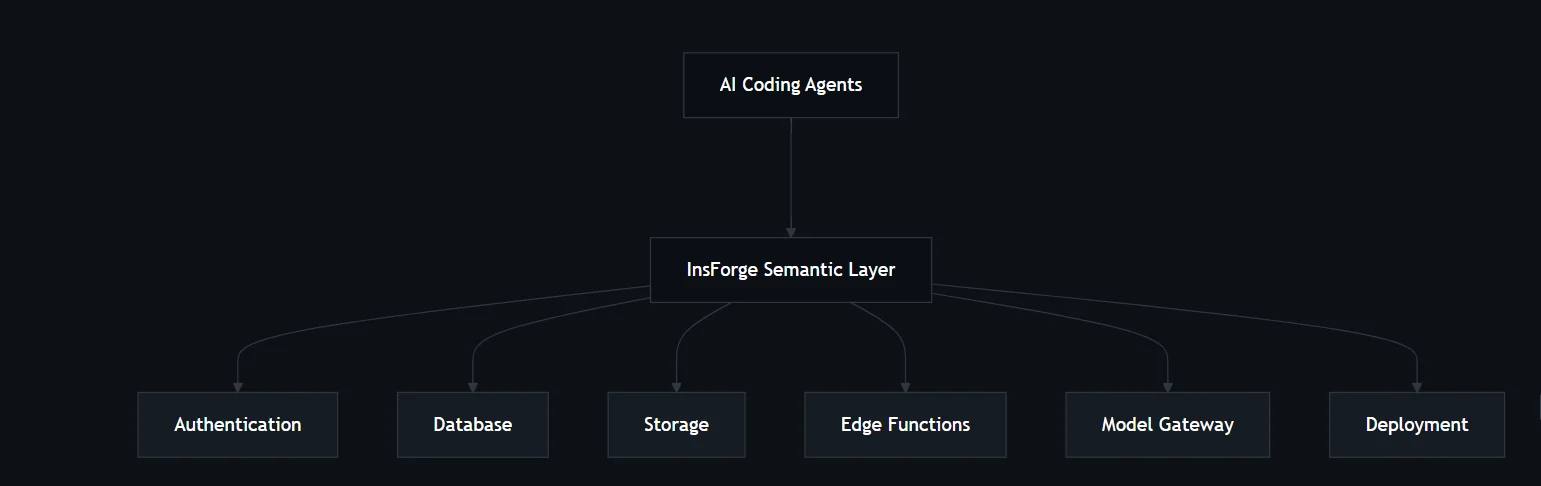
InsForge is an open-source backend platform that you can also self-host with Docker. It gives you a Postgres database, a REST API layer built on PostgREST, an AI model gateway that routes to any OpenRouter-compatible model, a real-time pub/sub system, and serverless function support, all running on your own infrastructure.
Think of it as the infrastructure layer for data-driven applications. Instead of stitching together a database, an API server, and an AI integration separately, InsForge bundles them into a single deployable platform.
You bring your application logic, and InsForge handles the plumbing underneath.
What We Are Using InsForge For
Three things in particular make InsForge the right choice for an AI-first project like this one:
- The managed AI gateway: You configure your OpenRouter API key once inside InsForge, and the platform handles all model routing from there. Your application calls one InsForge endpoint and passes a model string. Swap the string, and everything else stays the same. No per-model SDKs, no separate credentials in your codebase.
- The MCP server: InsForge ships with an MCP server that gives Claude Code direct access to your live backend. The agent can read your schema, fetch documentation, and generate auth tokens as part of a conversation. This is what makes the one-prompt build possible.
- The PostgREST layer: Every table in your InsForge database is automatically exposed as a REST endpoint. You do not write data access code. You describe your schema, and InsForge handles the rest.
Once you connect OpenRouter inside InsForge, the platform provisions the models and manages all routing.
For this project, we used anthropic/claude-sonnet-4.5, but you can switch models by changing a single string. Here is what available:
| Model | Input | Output |
|---|---|---|
| anthropic/claude-sonnet-4.5 | Text + image | Text |
| openai/gpt-4o-mini | Text + image | Text |
| x-ai/grok-4.1-fast | Text + image | Text |
| deepseek/deepseek-v3.2 | Text + image | Text |
| minimax/minimax-m2.1 | Text + image | Text |
| google/gemini-3-pro-image-preview | Text + image | Text + image |
Getting InsForge Ready
Creating Your InsForge Project
Head to insforge.dev and sign up. Once you create a project, the dashboard gives you three things you will need throughout this build:
- Base URL -- your project's unique API endpoint, for example, https://xxxxxxxx.us-east.insforge.app
- Anon Key -- for browser-side and public API operations
- Service Key -- for privileged server-side operations
Copy those and keep them close. That is all the platform setup InsForge needs.
Configuring the AI Gateway
Inside your InsForge dashboard, go to the AI Integration section and add your OpenRouter API key. InsForge connects to OpenRouter and provisions the available models automatically. From this point on, your application calls InsForge, and InsForge handles the routing. You pick the model. InsForge does the rest.
Setting Up Your Project Folder
Create a new folder for the project and open your terminal inside it:
mkdir insforge-dashboard
cd insforge-dashboard
Connecting Claude Code via MCP
Before we touch any application code, let's connect Claude Code to our live InsForge instance using the InsForge MCP server. MCP (Model Context Protocol) is an open standard that lets AI coding agents connect to external tools and live data sources as part of a conversation. When it is set up, Claude Code can reach into your running InsForge backend and work against it directly.
Installing the MCP
Run this command inside your project folder:
npx @insforge/install --client claude-code \
  --env API_KEY=your_insforge_api_key \
  --env API_BASE_URL=https://your-project.us-east.insforge.app
The MCP installs and registers itself with Claude Code automatically. Restart Claude Code, and the connection is live.
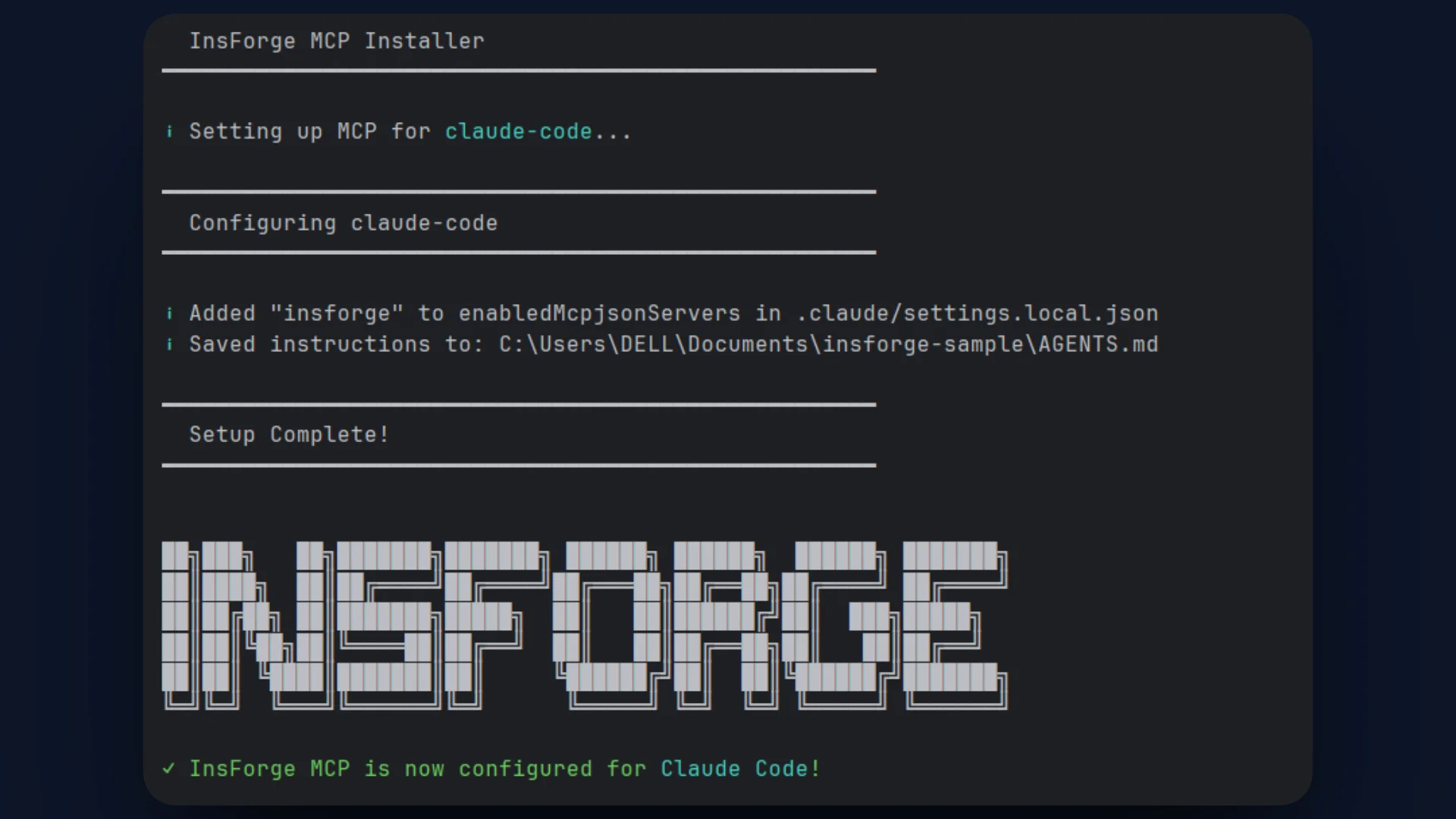
Open Claude Code and start with this prompt to see what the agent has access to:
Connect to my InsForge instance and tell me what you can see.
This is the output we got with Claude:
| What the agent saw | Details |
|---|---|
| Database | 3 tables: events (1,000 records), ai_insights (4 records), event_hourly_stats (0 records) |
| AI models | 6 models configured and ready including Claude Sonnet 4.5, GPT-4o-mini, Grok 4.1 |
| Auth | GitHub and Google OAuth configured |
| Schemas | Full column definitions and types for all three tables |
| SDK docs | InsForge REST API documentation fetched and read automatically |
Claude Code connects to the live backend, reads the schema, and fetches the SDK documentation through the MCP connection.
Building the Backend
With Claude Code connected to InsForge via MCP, run the following prompt to generate the FastAPI backend:
Build me a FastAPI backend with four routers: events, metrics, insights, and simulate.
Use the InsForge SDK to connect to my backend. The insights router should stream AI
responses using the anthropic/claude-sonnet-4.5 model through the InsForge AI gateway.
Before writing a single file, Claude Code uses the MCP connection to:
- Fetched the InsForge SDK documentation to understand the correct API patterns for database and AI calls
- Read all three table schemas so that the code it generated matched our actual data structure
- Generated a JWT token for authenticated database access
- Inspected the existing project structure to understand what was already in place
The result was a complete project structure generated in a single pass:
insforge-dashboard/
├── main.py          # App entry point, CORS, router registration
├── config.py        # Environment configuration
├── client.py        # Shared InsForgeClient with database and AI helpers
├── requirements.txt
└── routers/
    ├── events.py    # GET + POST /events
    ├── metrics.py   # GET /metrics/summary and /metrics/hourly
    ├── insights.py  # POST /insights/generate — SSE streaming
    └── simulate.py  # POST /simulate/events
The InsForge Client
The generated InsForgeClient communicates directly with the InsForge REST API using httpx. The database and AI gateway share the same client, base URL, and auth header, which reflects how InsForge unifies both services under a single interface.
class InsForgeClient:
    def __init__(self) -> None:
        self.base_url = INSFORGE_BASE_URL
        self._anon_key = INSFORGE_ANON_KEY

    @property
    def _headers(self) -> dict:
        return {
            'Authorization': f'Bearer {self._anon_key}',
            'Content-Type': 'application/json',
        }

    async def get_records(self, table, params=None):
        async with httpx.AsyncClient(timeout=30) as http:
            resp = await http.get(
                f'{self.base_url}/api/database/records/{table}',
                headers=self._headers,
                params=params or {},
            )
            resp.raise_for_status()
            raw_total = resp.headers.get('X-Total-Count')
            return resp.json(), int(raw_total) if raw_total else None

    async def create_records(self, table, records):
        async with httpx.AsyncClient(timeout=30) as http:
            resp = await http.post(
                f'{self.base_url}/api/database/records/{table}',
                headers={**self._headers, 'Prefer': 'return=representation'},
                json=records,
            )
            resp.raise_for_status()
            return resp.json()
The AI Streaming Method
The ai_stream method on the client calls the InsForge AI gateway and yields raw SSE lines back to the caller. The application calls the InsForge AI gateway directly. OpenRouter is configured once inside the InsForge dashboard and managed by the platform. The application codebase requires no OpenRouter credentials or model-specific SDK:
AI_MODEL = 'anthropic/claude-sonnet-4.5'

async def ai_stream(self, messages, system_prompt=None):
    payload = {
        'model': AI_MODEL,
        'messages': messages,
        'stream': True,
    }
    if system_prompt:
        payload['systemPrompt'] = system_prompt

    async with httpx.AsyncClient(timeout=120) as http:
        async with http.stream(
            'POST',
            f'{self.base_url}/api/ai/chat/completion',
            headers=self._headers,
            json=payload,
        ) as resp:
            resp.raise_for_status()
            async for line in resp.aiter_lines():
                if line.startswith('data: '):
                    yield line + '\n\n'
To switch models, update the AI_MODEL string at the top of client.py. The streaming logic, frontend integration, and persistence layer require no changes.
The Metrics Router
The metrics endpoint reads from the events and event_hourly_stats tables and aggregates the results in Python. InsForge's PostgREST layer does not expose GROUP BY directly, so we use Python's Counter to group by event name and page after the rows come back:
@router.get('/summary')
async def get_summary():
    records, total = await insforge.get_records(
        'events',
        {'limit': 1000, 'select': 'event_name,user_id,session_id,page'},
    )

    event_counts    = Counter(r['event_name'] for r in records)
    unique_users    = len({r['user_id'] for r in records if r['user_id']})
    unique_sessions = len({r['session_id'] for r in records if r['session_id']})
    page_counts     = Counter(r['page'] for r in records if r['page'])

    return {
        'total_events':    total or len(records),
        'unique_users':    unique_users,
        'unique_sessions': unique_sessions,
        'events_by_name':  dict(event_counts.most_common()),
        'top_pages':       dict(page_counts.most_common(10)),
    }


@router.get('/hourly')
async def get_hourly_stats(limit: int = 168):
    params = {'limit': limit, 'order': 'bucket_start.desc'}
    records, _ = await insforge.get_records('event_hourly_stats', params)
    return records
The Insights Router
When a user clicks Generate Insight, the insights router fetches recent event data, formats it as a structured context summary, and passes it to Claude Sonnet via the InsForge AI gateway. The stream proxies directly to the browser. Once it completes, the full response is saved to the ai_insights table so it persists across page refreshes:
_SYSTEM_PROMPT = (
    'You are an expert product analytics consultant. '
    'You will receive a structured summary of user event data and a specific question. '
    'Provide clear, concise, and actionable insights. '
    'Structure your response with labeled sections '
    '(e.g. ## Key Findings, ## Recommendations). '
    'Be specific — reference actual numbers from the data where relevant.'
)

async def stream_and_save():
    accumulated: list[str] = []

    async for sse_line in insforge.ai_stream(
        messages=[{'role': 'user', 'content': context}],
        system_prompt=_SYSTEM_PROMPT,
    ):
        data_str = sse_line.removeprefix('data: ').strip()
        try:
            parsed = json.loads(data_str)
            if 'chunk' in parsed:
                accumulated.append(parsed['chunk'])
        except (json.JSONDecodeError, KeyError):
            pass

        yield sse_line

    # Persist the full response once streaming is complete
    if req.save and accumulated:
        full_text = ''.join(accumulated)
        try:
            await insforge.create_records('ai_insights', [{
                'insight_type': req.insight_type,
                'title':        req.query[:80],
                'content':      full_text,
                'time_range':   req.time_range,
                'metadata': {
                    'total_events':    total,
                    'unique_users':    unique_users,
                    'unique_sessions': unique_sessions,
                    'event_breakdown': dict(event_counts.most_common(5)),
                },
            }])
        except Exception:
            pass  # Don't let a save failure break the delivered stream

    return StreamingResponse(
        stream_and_save(),
        media_type='text/event-stream',
        headers={'Cache-Control': 'no-cache', 'X-Accel-Buffering': 'no'},
    )
Notice that the save happens after the stream closes. The user gets the full streaming experience, and the insight is persisted in the background.
Running the Backend
python -m venv .venv

# Windows
.venv\Scripts\activate

# Mac / Linux
source .venv/bin/activate

pip install -r requirements.txt
uvicorn main:app --reload
Test that it is working:
curl http://localhost:8000/metrics/summary

# {"total_events": 1000, "unique_users": 198, "unique_sessions": 445,
# "events_by_name": {"page_view": 214, "search": 208, "purchase": 205, ...}}
Building the Frontend
Use the following prompt to generate the Next.js frontend:
Build a Next.js frontend for this analytics dashboard. It should have a metrics summary
row, an event volume chart, an event breakdown chart, a live event feed, and an AI insights
panel that streams responses word by word. Poll the FastAPI backend every 5 seconds for
live data.
The generated frontend uses Tailwind CSS and Recharts, with all components connected to the FastAPI backend. The two most important pieces are the polling mechanism and the SSE streaming implementation.
Keeping the Dashboard Live
The dashboard polls /metrics/summary and /events every 5 seconds, so it stays current. The data loads immediately on mount, and the interval keeps it fresh:
useEffect(() => {
    loadMetrics();
    loadEvents();
    const poll = setInterval(() => {
        loadMetrics();
        loadEvents();
    }, 5_000);
    return () => clearInterval(poll);
}, []);
Streaming AI Insights
When a user clicks Generate Insight, the AIInsightsPanel opens an SSE (Server-Sent Events) connection to POST /insights/generate and reads the response body as a stream, appending each chunk to a buffer as it arrives:
const reader  = res.body.getReader();
const decoder = new TextDecoder();
let buffer = '';

while (true) {
    const { done, value } = await reader.read();
    if (done) break;
    buffer += decoder.decode(value, { stream: true });
    const lines = buffer.split('\n');
    buffer = lines.pop() ?? '';

    for (const line of lines) {
        if (!line.startsWith('data:')) continue;
        const parsed = JSON.parse(line.slice(5).trim());
        if (parsed.chunk) callbacks.onChunk(parsed.chunk);
        if (parsed.done && parsed.insight) callbacks.onDone(parsed.insight);
    }
}
Each onChunk call appends to a streamBuffer in state, and the component renders the buffer progressively with a blinking cursor. When onDone fires, the buffer is cleared, and the persisted insight is prepended to the list. The panel header displays "claude-sonnet-4.5 - InsForge", confirming the model is served through the InsForge gateway.
Starting the Frontend
cd frontend
npm install
npm run dev
Open http://localhost:3000. Use the simulator to populate the dashboard with realistic events if you have not already:
curl -X POST "http://localhost:8000/simulate/events" \
  -H "Content-Type: application/json" \
  -d "{\"count\": 50}"
Run it a few times and refresh the dashboard. The metrics panel, charts, and event feed will populate with the simulated data.
Seeing It All Work
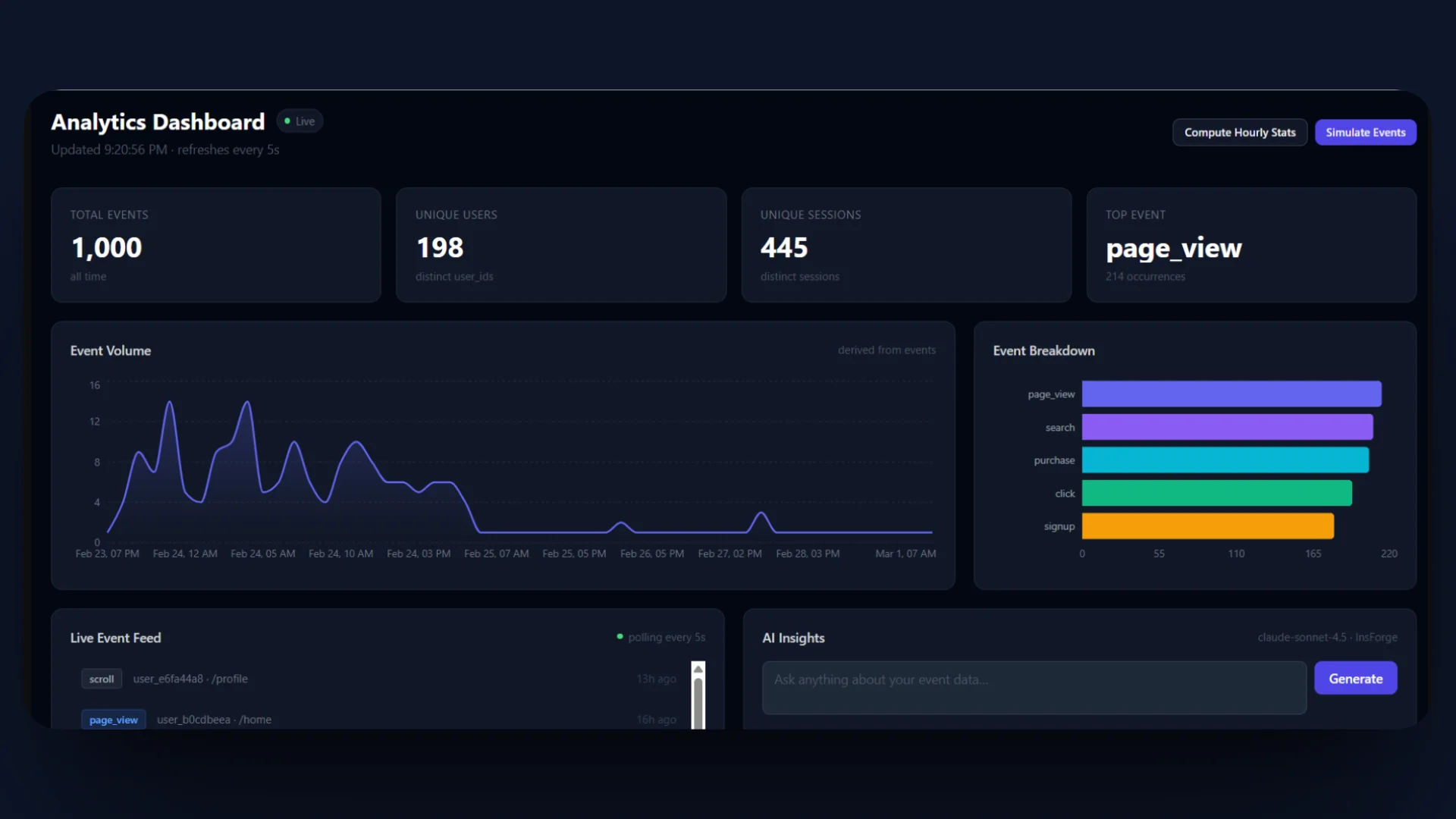
With both servers running and some events in the database, here is what the finished dashboard shows:
- Total Events, Unique Users, Unique Sessions, and Top Event in the metrics row at the top
- An Event Volume chart showing activity over the selected time range, switchable between 1 hour, 24 hours, and 7 days
- An Event Breakdown bar chart grouping events by type
- A Live Event Feed showing recent events with user IDs, pages, and timestamps, updating every 5 seconds
- An AI Insights panel where you submit a question and Claude Sonnet streams a structured analysis through the InsForge gateway in real time
Click Generate Insight, and see the results you get.
Live Updates with InsForge Realtime
InsForge includes a built-in real-time system for pushing updates to connected clients over WebSockets. It is channel-based and built directly into the platform alongside the database and AI gateway, so there is nothing additional to configure.
To add Realtime to the dashboard, run this prompt in Claude Code:
Add InsForge Realtime to the app. When a new event is inserted via POST /events or the simulator, publish it to a channel called analytics:events. On the frontend, subscribe to that channel using the InsForge Realtime SDK and push incoming events directly into the live event feed as they arrive.
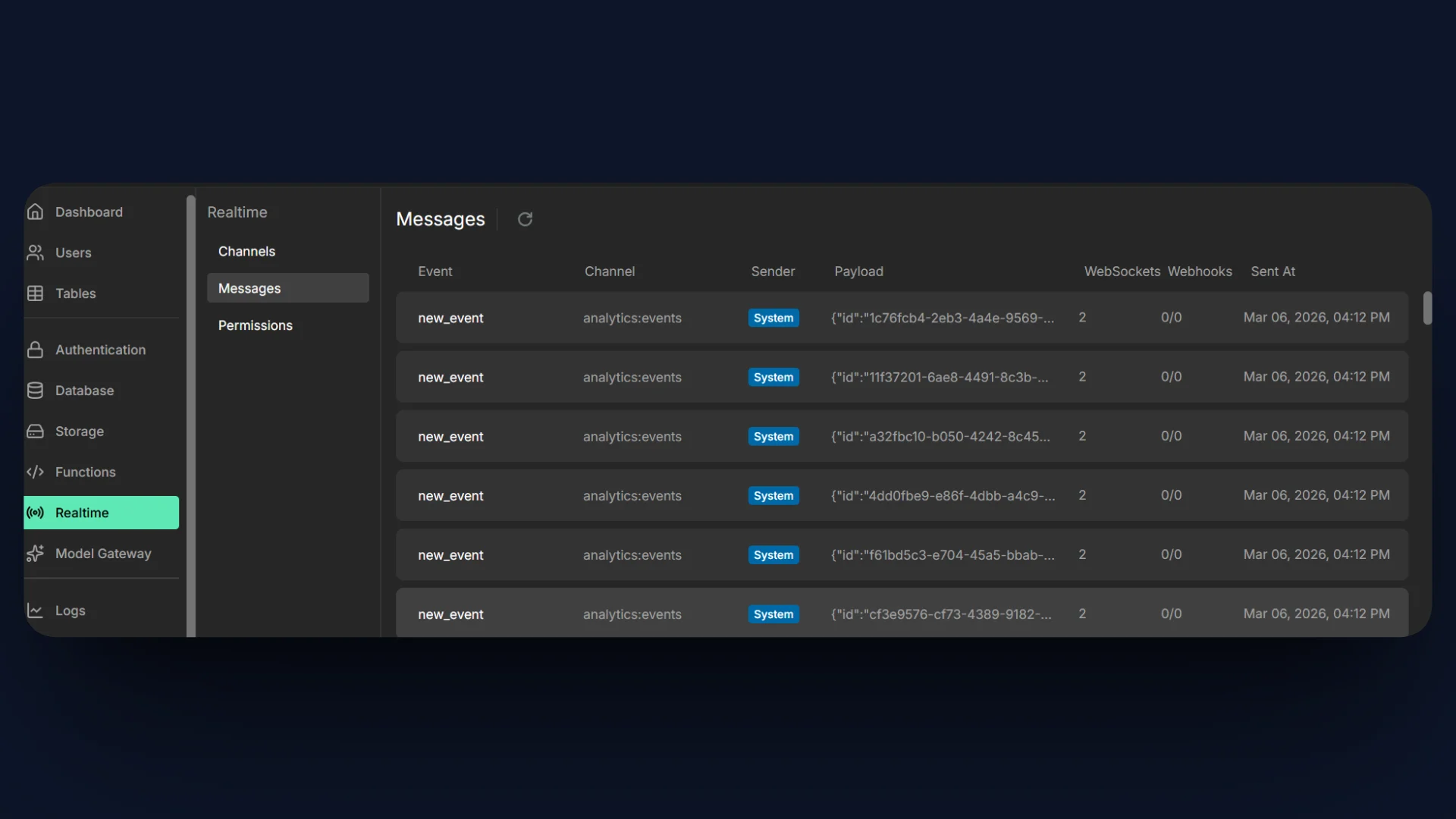
Claude Code registers the channel and creates a database trigger on the events table that fires realtime.publish() on every insert. This covers both the API endpoint and the batch simulator.
The InsForge Realtime dashboard logs every message flowing through the system, showing the event name, channel, payload, and timestamp for each publish call.
Deploying the Application
Once the dashboard is working locally, deploying it is a matter of giving Claude Code a prompt. Because the MCP connection is still active, the agent understands the project structure and can generate the deployment configuration without any additional context.
Generating the Deployment Configuration
Run the following prompt in Claude Code:
Prepare this project for deployment to Zeabur. Create a Dockerfile for the FastAPI backend and a Dockerfile for the Next.js frontend using standalone output. Include a .dockerignore for each service.
Claude Code will generate the following files:
insforge-dashboard/
├── Dockerfile          # FastAPI backend — Python 3.11 slim, uvicorn on port 8000
├── .dockerignore
└── frontend/
    ├── Dockerfile      # Next.js — multi-stage Node 20 build, standalone output
    └── .dockerignore
Deploying to Zeabur
Push the project to GitHub, then go to zeabur.com and create a new project. Add two services from the same repository:
- Backend service: point Zeabur at the root directory. It detects the Dockerfile automatically. Set the following environment variables:
INSFORGE_BASE_URLandINSFORGE_ANON_KEY. - Frontend service: point Zeabur at the
/frontendsubdirectory. SetNEXT_PUBLIC_API_URLto the public URL Zeabur assigns to your backend service. This must be set before the build runs, as it is baked into the Next.js bundle at build time.
Once both services are deployed, click Generate Domain on each to assign a public URL. The frontend will be accessible at its public URL and will communicate with the backend through the NEXT_PUBLIC_API_URL you configured.
What's Next?
At this point, you have a fully working AI analytics dashboard running on InsForge. Claude Code generates the backend through a single MCP-connected prompt. AI insights stream through the InsForge gateway with no OpenRouter configuration required in the application. The dashboard stays current via polling, and every insight is persisted to the database.
From here, the project is yours to extend. Swap in your own event schema, add new metrics endpoints, or change the AI model to gpt-4o-mini or grok-4.1-fast by updating a single string in client.py. The MCP connection stays live, so Claude Code remains a capable collaborator for any further work. You can clone the project's repo and extend the project further.
To learn more about InsForge, check out the GitHub repo.